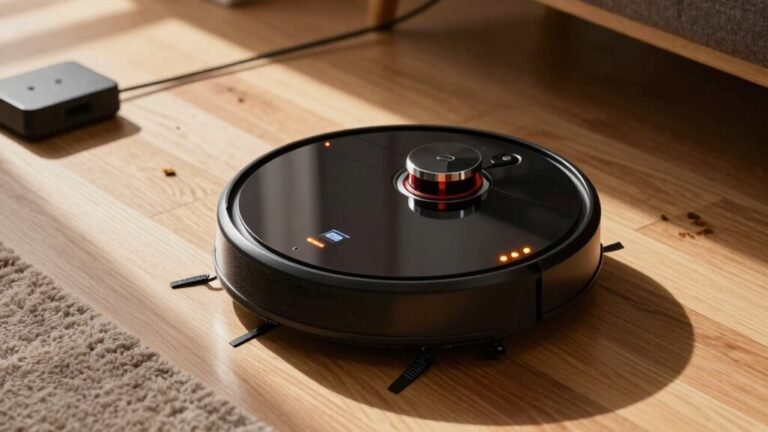
How to Reset Your Robot Vacuum
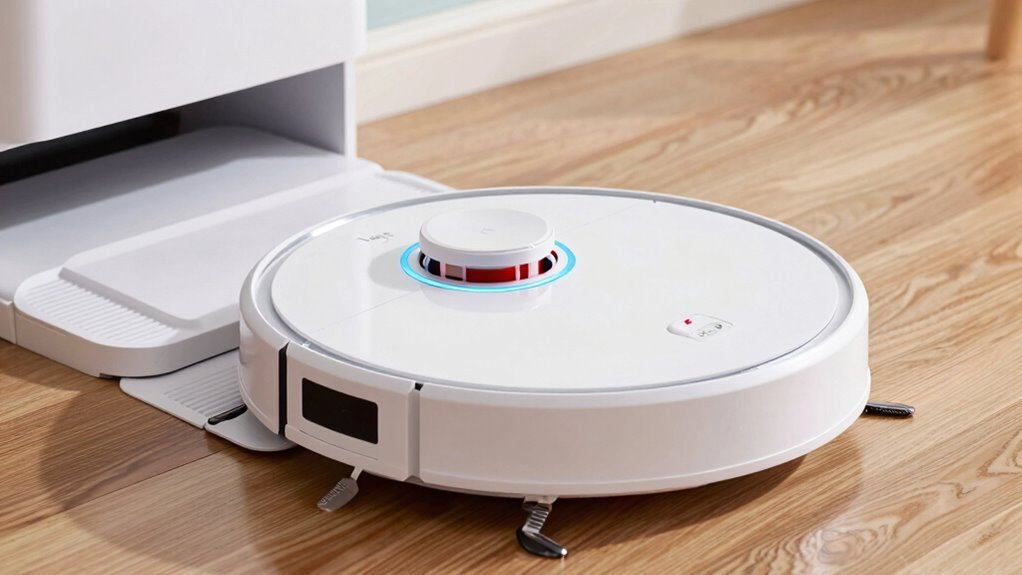
Got a robot vacuum acting up? No worries—resetting your robot vacuum is usually as simple as holding down the Clean or Power button for 10–20 seconds until it beeps or restarts.
Make sure the device is charged above 20% and clear any debris before starting. Different brands like iRobot, Narwal, or ECOVACS have slight variations, but most follow the same basic reboot process.
It’s like giving your little cleaner a quick nap to wake up refreshed and ready. And if you’ve ever wondered what to do when it still won’t listen—well, there’s a clever fix for that too.
Why Your Robot Vacuum Needs a Reset
Ever feel like your robot vacuum’s forgotten how to vacuum?
Maybe it’s spinning in circles, ignoring dirt, or refusing to charge—classic signs something’s off.
Don’t panic!
Those glitches happen, and a quick reset often fixes them fast.
When software hiccups mess with navigation or performance, a soft reboot clears the cobwebs, just like restarting your phone.
Dust-covered sensors can trick your bot into thinking walls are ghosts, but a reset kicks the system back to life.
If it’s lagging or freezing, a soft reset usually brings the zoom back.
And when error messages pop up like uninvited guests?
Hold that reset button—confirmation beeps mean help’s on the way.
Sure, it might forget your Wi-Fi for a sec, but hey, even robots need a little tune-up now and then.
Resetting isn’t drastic—it’s cleverly smart.
A battery calibration reset can also correct inaccurate battery level readings, ensuring your robot makes it back to the dock.
Prepare Your Vacuum Before Resetting
Before you hit that reset button and give your robot vacuum a little digital reboot, let’s make sure everything’s set up for success—because even robots like to have their coffee hot and their batteries charged. Check these key steps to avoid hiccups:
| Do This First | Why It Matters |
|---|---|
| Charge battery above 20% | Guarantees reset finishes without dying mid-process |
| Clear debris from brushes | Prevents false errors and sticky issues |
| Clean sensors and wheels | Helps it “see” and move smoothly after reset |
| Place near Wi-Fi router | Boosts signal for seamless reconnection |
| Log into your app now | Saves headaches when re-pairing later |
Grab the manual, find that power button, and make sure your vacuum’s ready—physically *and* digitally. A little prep means your little robot buddy won’t glitch out when you need it most. Let’s reset ready, set, go!
Also, ensure your Wi-Fi is operating on a 2.4 GHz band, as 2.4 GHz Wi-Fi required for setup, since most robot vacuums don’t support 5 GHz networks during initial or post-reset configuration.
How to Reset iRobot, Roborock, and Eufy
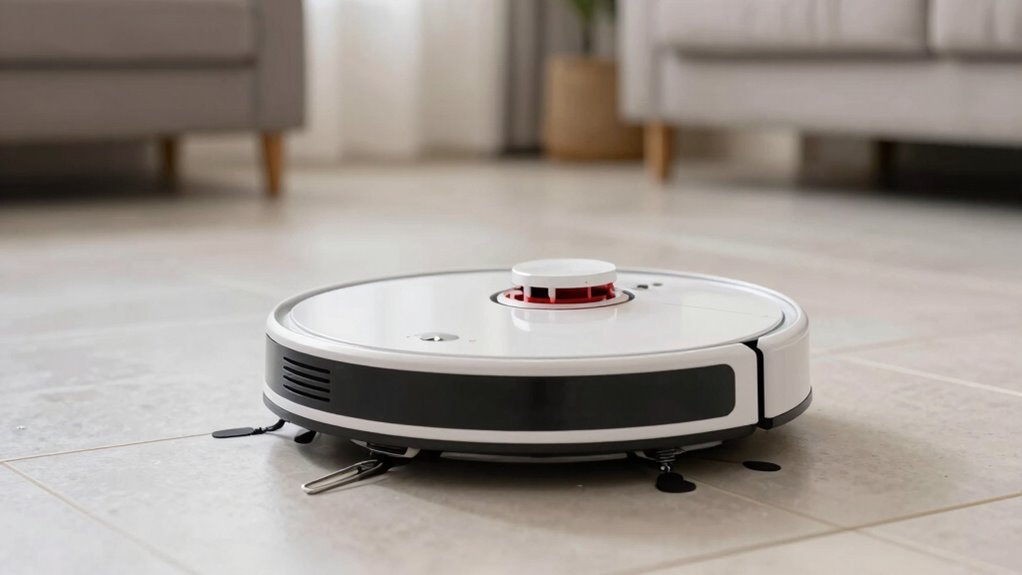
How do your robot vacuum’s quirks stack up when it’s time to wipe the slate clean? For iRobot Roombas, just hold the Clean button 10–20 seconds—until the light dips and comes back to life.
Got an i3 or i4? Smash all three buttons fast for a beep and glowing swirl.
Older 600 or 800 models? Team up Spot and Dock buttons like a duo.
After any reset, reconnect Wi-Fi and reschedule cleanings in the app—think of it as robot rehab.
Feeling extra? The Combo 10 Max lets you factory reset by holding Clean for 7 seconds after removing the bin.
But here’s the twist: Roborock and Eufy owners, we’re in the dark—no clear steps in the results.
Maybe their reset secrets are under the couch cushions.
For now, iRobot’s the star, while the others play hard to get.
Reset on!
Factory Reset Your Vacuum by Model
So, what’s the plan when your trusty robot vacuum starts acting up like it forgot its own name?
For Narwal Freo X Ultra, just hold the CLEAN button for 10 seconds—wait for the beep and a fresh restart.
Got a Narwal Freo? Press HOME + SPOT CLEAN + CLEAN together until the light ring swirls.
Dreame users, open the Dreamehome app, tap through Settings, confirm the reset, and let it wipe clean—or use the pinhole trick if you’re feeling hands-on.
ECOVACS fans, flip the switch under the cover to ‘I’ and hold the reset button for 5 seconds—listen for the voice cue and music.
All models erase maps, Wi-Fi, and schedules, so they’re like newborn bots.
It’s a hard reset, sure, but think of it as a mini vacation for your vacuum—out with the old glitches, in with the fresh start!
What to Do If the Reset Doesn’t Work
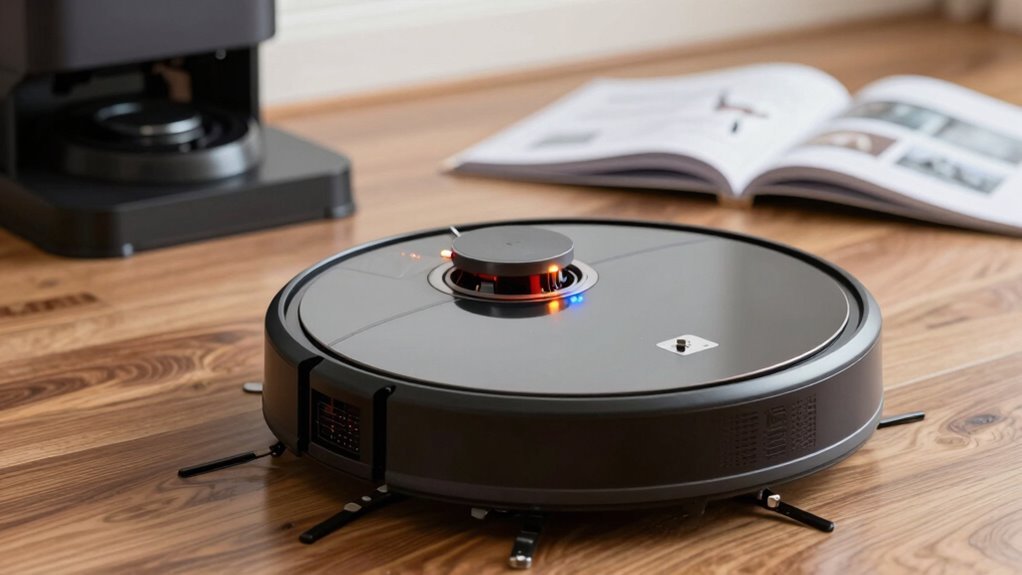
If your robot vacuum’s still throwing a tantrum after a reset, don’t give up just yet—sometimes these smart little bugs need a bit more coaxing to snap out of it.
First, double-check that you used the right button combo—like HOME + CLEAN + SPOT on your Narwal Freo—and held it for a solid 10–20 seconds.
Use a paperclip for hidden buttons, and listen for that happy beep or chime.
Make sure it’s got at least 20% battery, or pop it on the charger for 30 minutes.
Try a soft reset, a power reboot, or even a factory wipe in the app.
Clear out dirt from sensors, check for stuck wheels, and remove any table-leg traps.
If it’s still ghosting you, contact support—Wyze or Shark, they’ve got your back.
You’ve got this!
Frequently Asked Questions
Will Resetting Delete My Saved Cleaning Schedules?
No, resetting won’t always delete your schedules—phew!
A soft reset fixes glitches but keeps your settings safe and sound.
Only a factory reset wipes everything, including Wi-Fi and maps.
Some brands let you save schedules in the app first, so you’re not starting from scratch.
Check your model, back things up if you can, and you’ll be back to clean, worry-free floors in no time—robot’s honor!
Can I Reset My Vacuum Without the App?
You bet you can reset your vacuum without the app—no phone or Wi-Fi needed!
Just grab a paperclip or pin and press that tiny reset button, or hold down the Clean and Dock buttons like you’re skipping a rock.
Most models beep or flash to confirm.
It’s quick, satisfying, and feels kinda like magic.
Boom—fresh start, no apps required!
Does a Reset Fix Wi-Fi Connectivity Issues Permanently?
No, a reset doesn’t fix Wi-Fi issues permanently—it’s more like a quick reboot than a cure.
You’ll get back online fast, but if your router’s picky or your vacuum’s lost in a dead zone, problems creep back.
Think of it as a friendly “hey, let’s try again” rather than a long-term solution.
Pair it with a stronger 2.4 GHz signal, and you’re golden!
How Often Should I Reset My Robot Vacuum?
You rarely need to reset your robot vacuum—only about 3% of users do it more than twice a year!
You’ll only hit that button if it freezes, loses Wi-Fi, or acts wonky.
Most issues fix with a quick clean or charge.
Think of resetting as the “turn it off and on” joke your tech-savvy friend loves—it works, but you don’t need it daily.
Stick to regular maintenance and save resets for emergencies.
Will Resetting Void My Vacuum’s Warranty?
Nope, resetting won’t void your warranty—you’re totally safe there!
Just stick to soft resets or app-guided ones, and don’t go poking around inside.
Think of it like rebooting your phone: quick, easy, and risk-free.
Factory resets are fine too, as long as you avoid cracking open the shell.
Keep it simple, follow the manual, and you’ll keep your coverage while giving your bot a fresh start—no drama!
Conclusion
You’ve done the hard work, and now your vacuum’s ready for a fresh start—like hitting turbo mode on a sleepy robot! Just follow these simple steps, and you’ll have it zipping around like it’s brand new. Don’t sweat it if tech stuff feels tricky; even confused robots deserve second chances. Grab your model, give it that quick reset, and boom—clean floors with way less fuss. You’ve totally got this!
References
- https://www.ecovacs.com/us/blog/how-to-reset-robot-vacuum
- https://us.narwal.com/blogs/product/how-to-reset-robot-vacuum-cleaner
- https://www.eufy.com/blogs/robovac/how-to-reset-robot-vacuum-cleaner
- https://homesupport.irobot.com/s/article/9047
- https://www.samsung.com/us/support/troubleshoot/TSG10002337/
- https://www.dreametech.com/blogs/blog/how-to-reset-a-robot-vacuum
- https://www.youtube.com/watch?v=NubNcAW5Vus
- https://www.lg.com/us/support/help-library/lg-robot-vacuum-how-to-reset-learned-data–20153423131775
- https://www.youtube.com/watch?v=rbgBZsZ8-Zk
- https://www.robotreviews.com/chat/viewtopic.php?t=23464