Robot Vacuum Error Codes: What Do They Mean?
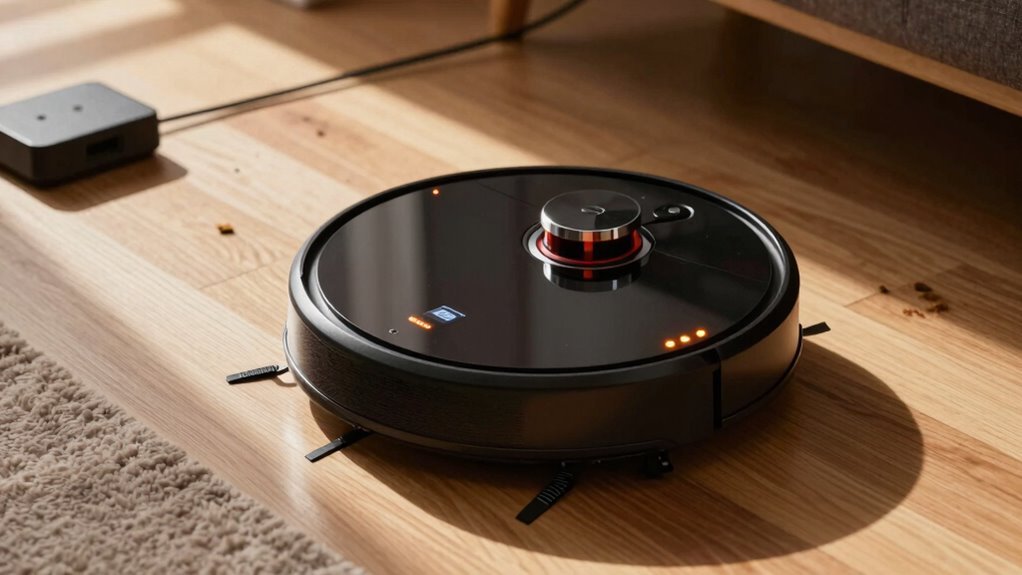
Your robot’s beeping? Don’t panic—it’s just communicating in robot speak, often indicating a specific error code that needs attention. Robot vacuum error codes are easy to decode with a little guidance.
E01 or E02? Clear debris from the wheels to get it moving smoothly again. These common robot vacuum error codes usually mean the wheels are stuck or obstructed.
E03 signals a full dustbin—empty it and tap the filter to restore suction. For E04, wipe the sensors clean; for E05, check if the side brush is tangled. Most issues are quick fixes that take only minutes.
Charging problems often trigger E07. Check the charging port and power source to resolve connectivity issues. With a little troubleshooting, most robot vacuum error codes lead to simple solutions.
E01: Wheel Obstruction – Clear Debris Now
Got your robot stuck?
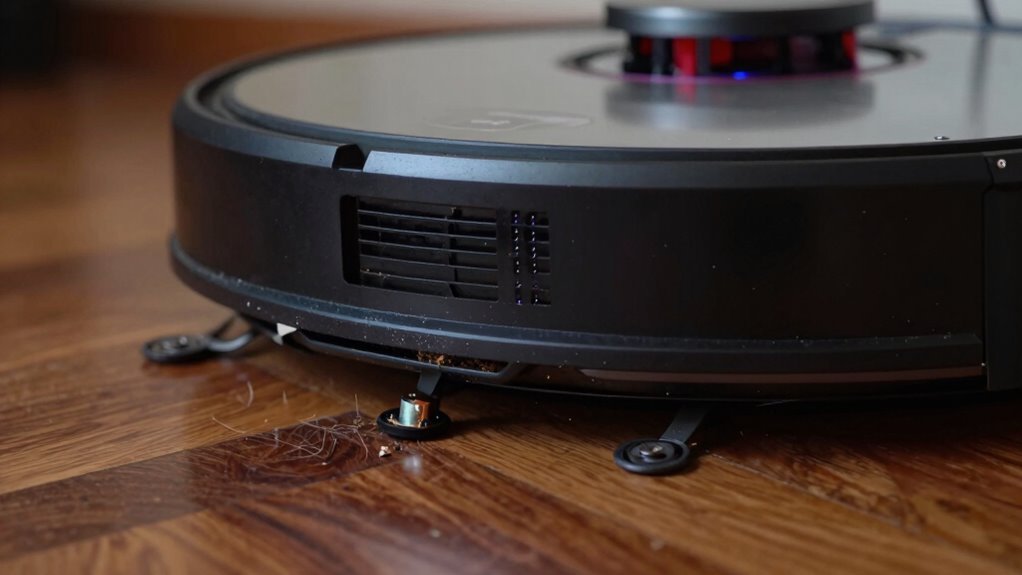
If your MD-18600 flashes E01, the left wheel’s likely blocked—don’t panic, it happens!
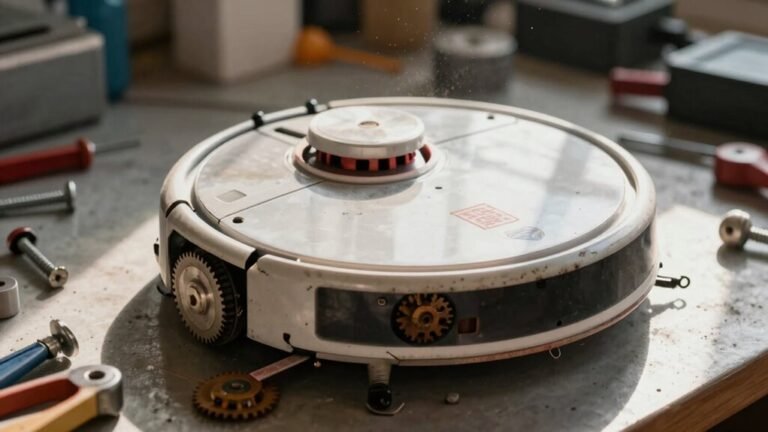
You’ll want to scoop it up, check both wheels, and yank out hair, strings, or gunk clogging the works.
Give each wheel a spin with your fingers; they should turn freely, like they’re dancing.
If they’re sluggish, clean the wheel contacts too—dirt loves hiding there.
No more mystery socks or stray Legos on the floor, okay?
Place your bot in the middle of the room, on a smooth, flat surface, then restart the job.
Think of it as a little spa treatment: clean wheels, fresh start.
Avoid wobbly add-ons that aren’t made for your model—they’ll just trip it up.
Fix this fast, and your robot’s back in action, ready to own the clean.
Remedy the fault on the wheels by ensuring no debris is trapping the left side, as left wheel is blocked can prevent proper movement.
E02: Brush Roll Jammed – Fix Fast
You cleared the gunk from the left wheel to fix that E01 error—nice work! Now, if your MD-18600 flashes E02, don’t panic. It means the right wheel’s jammed, not the brushroll—confusing, right? But hey, robots aren’t perfect spell-checkers. Here’s how to kick that glitch to the curb:
- Spin the right wheel – Pick up your robo-pal and check for hair, threads, or that rogue Fruit Roll-Up stuck in the spokes.
- Clear debris carefully – Use scissors to snip tangled gunk, then give the wheel a wiggle. It should spin like it’s showing off.
- Reboot and test – Place it on the floor, hit start, and cheer it on like it’s crossing a finish line.
If it still stumbles, peek at the side brush—sometimes it tricks the sensor.
Also, ensure the hose and wand are properly connected, as a communication issue there can cause errors like E2 error even when the wheels seem clear.
Fixed? Dance party. Not? Support’s got your back.
E03: Full Dustbin or Clogged Filter – Clean in 2 Minutes
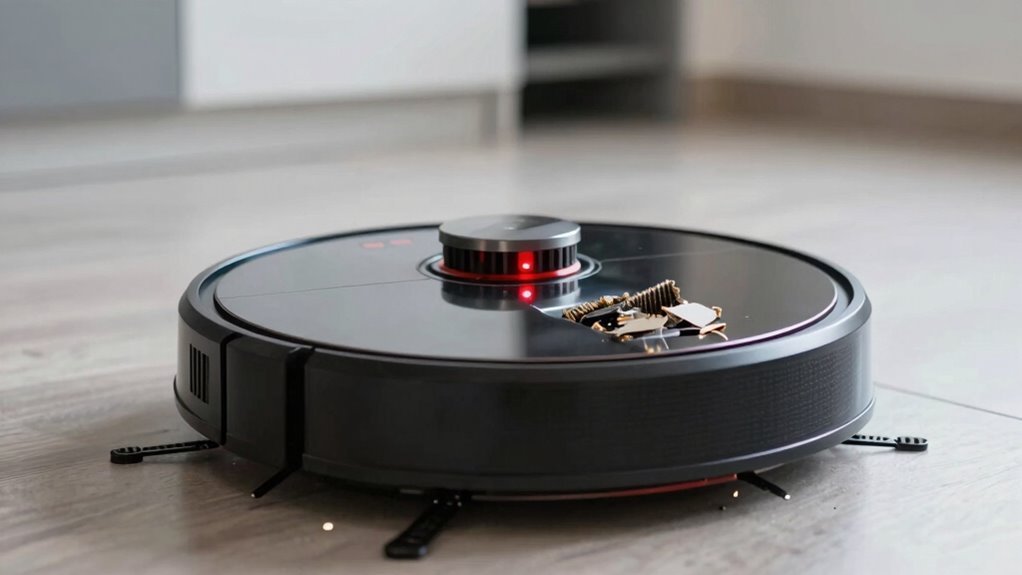
What’s slowing your robot vacuum down—when it just won’t go? E03 means your dustbin’s full or the filter’s clogged—time for a quick cleanup! Most models scream this error to avoid motor strain, so don’t ignore it. Power off, then yank out the dustbin and dump it like last week’s snacks.
Tap it to free stubborn dust, and if your model allows, rinse it—just dry it fully before reassembling. Next, pop out the filter and give it a solid tap—don’t be shy! Reinstall everything snugly, power up, and boom—your robot should beep happily.
Spot this error often? Try emptying the bin every few runs and clean the filter weekly. It takes under two minutes and keeps your robo-pal zooming strong. Skip it, and your vacuum might just throw a tiny, dusty tantrum.
E04: Cliff Sensor Dirty – Wipe to Restore Function
When your robot vacuum suddenly freezes like it’s seen a ghost, chances are it’s not scared—it’s just confused.
That E04 error means your vacuum thinks it’s about to tumble down a cliff, but really, its sensors are just begging for a spa day.
Dirty cliff sensors can’t see the floor right, so they panic and stop moving.
Good news? You can fix it fast.
Here’s how:
- Turn it off and flip it over – Find those little sensor windows on the bottom edges.
- Wipe gently with a dry microfiber cloth – No water, just light strokes to clear dust and hair.
- Blow out debris with compressed air – Make sure nothing’s blocking the sensor’s view.
Most E04 errors vanish after a quick clean—no tools needed!
If it still acts up, hold the power button for 10 seconds to reset it.
Keep sensors clean weekly, and your little robot will brave any floor—no false cliffs allowed!
E05: Side Brush Stuck or Missing – Reattach or Replace
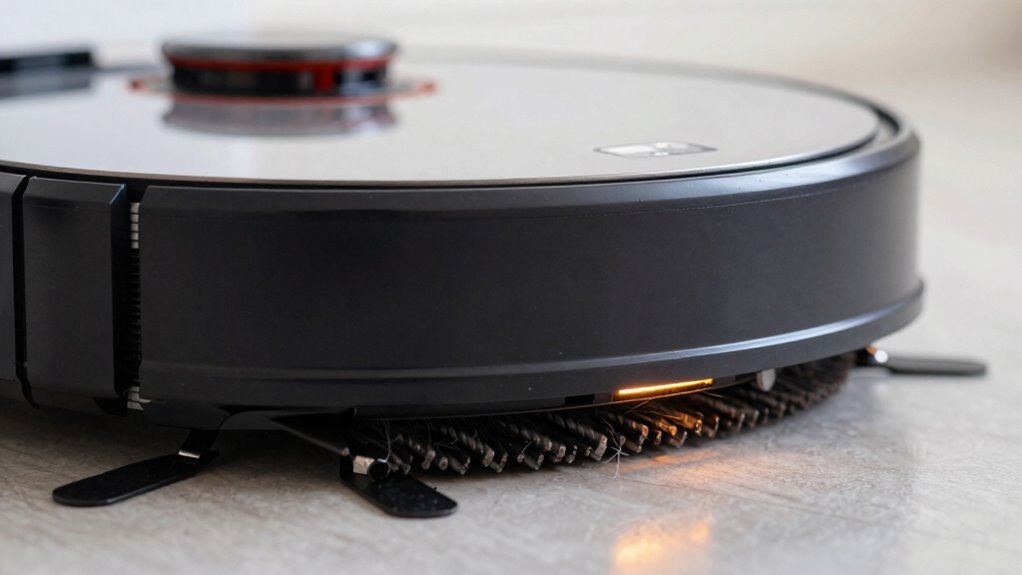
A little hiccup with your robot vacuum? If you’re seeing E05, don’t panic—your side brush might just be loose or clogged. First, flip the robot over and check if the brush is missing or stuck.
Remove it, give it a good spin under running water, and clear any hair or gunk wrapped around the base. These little brushes work hard, so they deserve a spa day!
Once clean, reattach it tightly—make sure it clicks into place and spins freely. Wiggle the drive shaft to check it’s not slipping.
Test it out, and if it still acts up, try the original brush—third-party ones can confuse your bot.
If all else fails, maybe it’s time for a replacement. Quick fix, right? Your robo-helper’s back in action before you know it!
E06: Robot Lost? Reset Navigation Map
Lost in translation? Your robot isn’t confused by dialects, but E06 means it’s truly *lost*. Dusty sensors, dark rugs, or a software hiccup can scramble its map and leave it spinning like a confused pup.
Don’t panic—fixing it’s easier than teaching your dog new tricks.
Here’s how to get your bot back on track:
- Wipe down sensors and clear the floor – gunk on LiDAR or cliff sensors fools your robot into “seeing” fake walls or drop-offs.
- Update the app and reset the map – fresh firmware fixes glitches, and a clean map start clears navigation nightmares.
- Anchor the charger and declutter the zone – a wobbly dock or stray cord turns your home into a robot maze.
Give it a quick reset, and watch your vacuum go from “Where am I?” to “I got this!” in minutes.
E07: Not Charging? Solve Battery Errors
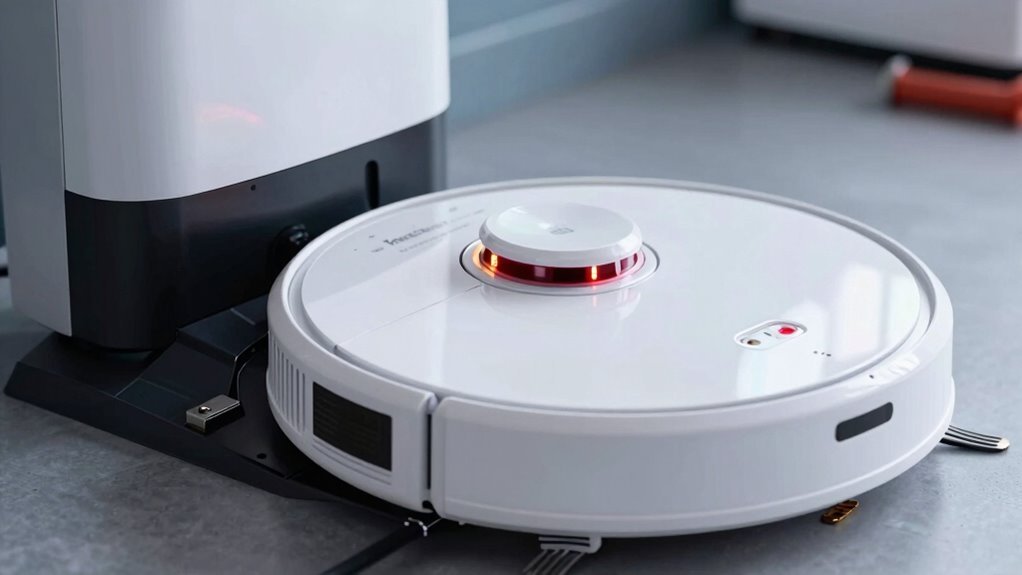
What’s the deal—your robot vacuum giving you the cold shoulder instead of juicing up on the charger? Don’t panic just yet! An E07 error usually hints at a charging hitch, but it’s often nothing a little TLC can’t fix. First, check the basics—yes, like making sure the charger’s plugged in (we’ve all been there). Then give the charging ports a quick wipe; dust bunnies love hiding there too. If your robo-pal still won’t charge, try resetting it—sometimes a digital nap helps.
| Issue | Quick Fix | Pro Tip |
|---|---|---|
| Dirty contacts | Wipe with a dry cloth | Use rubbing alcohol sparingly |
| Faulty adapter | Test with another outlet | Swap in a known-good cord |
| Aging battery | Contact support | Batteries wear out—replace! |
Robot Vacuum Error Codes: What They Really Mean
That E07 error got sorted, and now your robot’s back on the charger like a champ—great job!
But what about those other weird codes popping up?
Don’t sweat it.
Error messages aren’t robot tantrums—they’re just cries for help.
Most mean something simple’s off.
- Something’s stuck or dirty – Whether it’s hair in the brushroll (looking at you, Error 2) or gunk in the sensors, 90% of errors boil down to a quick clean.
- Your floor’s fighting back – Thick rugs, dark tiles, or cluttered corners can fool cliff sensors or jam bumpers (hello, Error 7).
- It just needs a reset – Power it down, wipe sensors, or restart—sometimes even robots need a deep breath.
Keep calm and vacuum on—your robot’s got quirks, not problems!
Find Your Model’s Error Code Guide
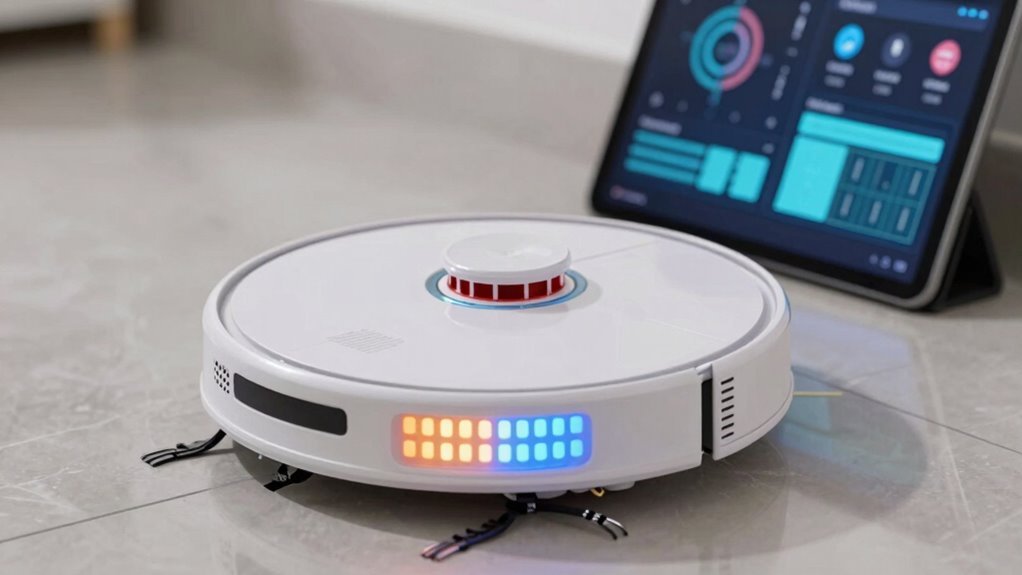
Ever feel like your robot vacuum is speaking a secret code when that little error message pops up?
Don’t sweat it—you’re not alone!
Every brand speaks its own language.
Check your model’s manual or the manufacturer’s website to crack the code fast.
Narwal numbers like 1001-1060 pinpoint exact issues, while Roborock keeps it simple with Errors 1-22.
Shark uses codes like 2, 6, or 9, plus flashy light patterns to clue you in.
Roomba might say “Error 1” or even talk to you—yes, really!
And bObsweep? It labels problems from 00 up, so you’ll know if a wheel or sensor’s acting up.
A quick Google with your model name and “error code” usually pulls up a full guide in seconds.
Think of it like a treasure map—except the prize is a clean floor and a happy robot.
Just grab your phone and decode that beep-beep mystery before your vacuum throws another tantrum!
When to Call Support – Beyond Simple Fixes
Still stuck in a loop of beeps, bumps, and botched cleanings even after giving your robot vacuum the full spa treatment?
If basic fixes haven’t cut it, it’s time to call in the pros.
You’ve done the work—cleaned the brushes, wiped the sensors, reset everything twice—and still, your robo-pal won’t behave.
Don’t sweat it!
Some glitches need expert eyes.
Here’s when to hit that support button:
- Your vacuum keeps ditching chores mid-clean, even after battery checks and resets.
- It’s ghosting the dock, missing it every time, despite clear paths and sensor wipes.
- Software updates fail, apps won’t connect, or the brain seems totally fried after multiple factory resets.
Trust us, support teams have seen it all—from rogue brushes to confused cliff sensors.
Calling them isn’t defeat; it’s victory in disguise.
Frequently Asked Questions
How Often Should I Clean the Sensors?
You should clean your sensors once a month, but if you’ve got pets or a dusty home, aim for every two weeks.
Wipe them gently with a dry microfiber cloth—think of it as a quick spa wipe for your bot!
Weekly checks keep things running smooth, especially if your vacuum’s working hard.
It’s an easy habit that saves headaches later.
Your robot will thank you—furry dust bunnies beware!
Can I Use My Robot Vacuum on Carpets?
Can you use your robot vacuum on carpets?
Absolutely, you can!
Just make sure it’s a model with good suction and smart sensors—wouldn’t want it eating your rug like spaghetti, right?
Most do fine on low to medium piles, especially if they’ve got rubber brushes and carpet-boost mode.
Skip the shag, though; it’s basically a jungle for tiny vacuums.
Does Updating Firmware Fix Error Codes?
Yep, updating firmware often fixes error codes—think of it like giving your robot a brain boost!
You’ll usually see smoother runs and fewer glitches.
Just grab your app, tap that update, and let it rip.
Sometimes it’s not a magic fix, but hey, it’s the first move for a reason.
And don’t sweat it—your robo-pal’s got this, with a little digital TLC.
What’s the Lifespan of a Robot Vacuum?
Your robot vacuum typically lives 3 to 5 years, but you can stretch that to 7 with love and care!
Use it daily, especially with pets or big homes, and it’ll wear out faster—kind of like your favorite sneakers.
Clean brushes, swap filters, and reboot now and then.
Treat it right, and your little robo-pal keeps zipping around, hassle-free, for years!
Can Multiple Users Control the Same Robot?
You bet you can share control—imagine your vacuum’s like a family pet that listens to everyone!
With Matter, you and your crew can all command it from different apps or voice assistants, no drama.
Whether it’s Alexa, Google, or Siri, the vacuum knows the drill.
One setup, shared rules, zero headaches.
And hey, no fighting over who’s in charge—it’s like democracy with better suction!
Conclusion
You’re winning the battle against dust, yet suddenly, E01 flashes like a tiny robot tantrum. No worries—clear that gunk, wipe those sensors, and give your machine a little love. It’s not broken, it’s just asking for help! One minute you’re stuck, the next you’re back in action. Funny how a little hiccup turns a chore into a triumph. Keep calm, clean on, and remember: your vacuum’s drama is just part of the team effort.
References
- https://community.medion.com/t5/FAQs/What-do-the-error-codes-mean-for-the-MD-18600-Robot-Vacuum/ta-p/125389
- https://service.eufy.com/sg/article-description/S1-Pro-Common-Voice-Errors-and-Basic-Troubleshooting-Guide
- https://www.youtube.com/watch?v=KcCNKey1Jdo
- https://support.roborock.com/hc/en-us/articles/360035369092-What-should-I-do-when-error-1-occurs
- https://support.dreametech.com/hc/en-us/articles/11786271887631-Troubleshooting-Guide-E1-Motor-Fault
- https://www.youtube.com/watch?v=7lkJ2VteAWY
- https://evacuumstore.com/blogs/evacuumstore-blog/el7060-series-error-code-troubleshooting
- https://www.youtube.com/watch?v=dbLjMlTLwgE
- https://www.youtube.com/shorts/71YOU1AD6so
- https://support.dreametech.com/hc/en-us/articles/11786423393423-Troubleshooting-Guide-E3-Motor-Fault