How to Update Robot Vacuum Firmware
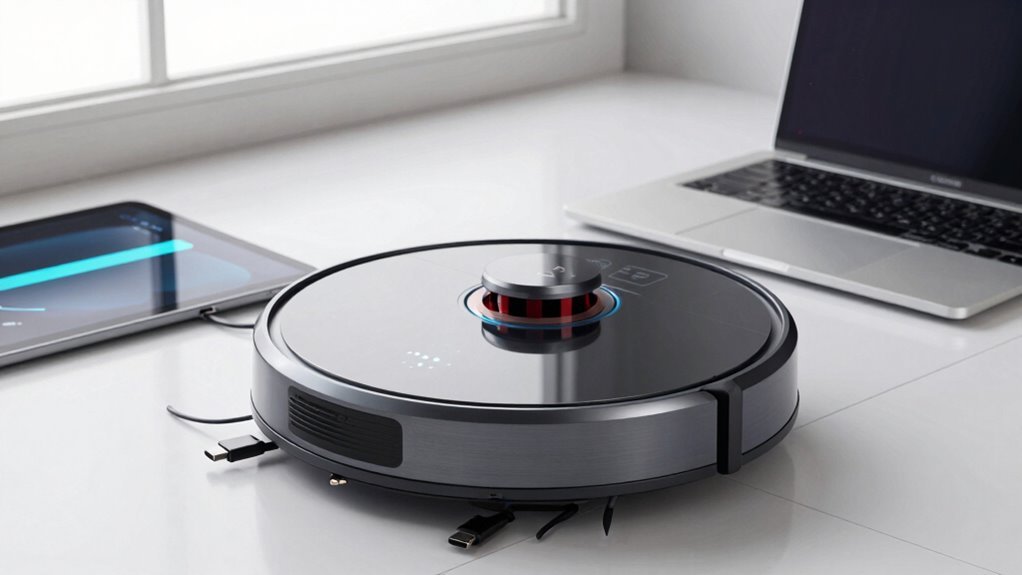
To update robot vacuum firmware, open the app linked to your device and tap the device icon. Look for firmware updates under settings—often found in a small dot menu.
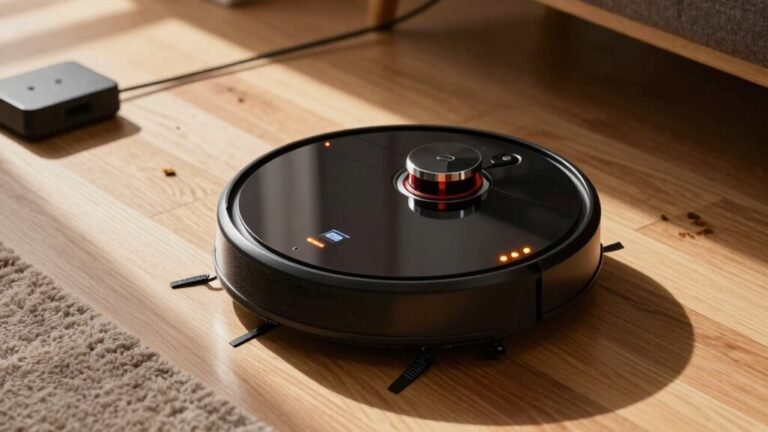
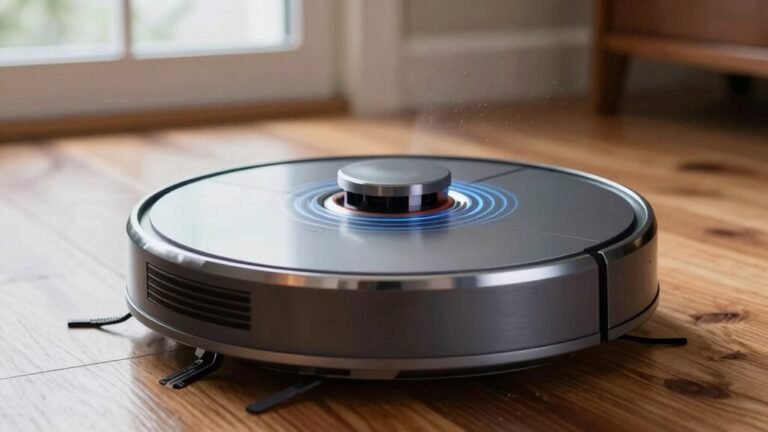
Ensure your robot vacuum is docked, fully charged, and connected to a stable Wi-Fi network before starting. Tap “Update” and let it download and reboot automatically; a yellow pulsing light indicates it’s working.
Once the update finishes, your robot vacuum will chime to confirm completion. Check the firmware version in the app to verify the update—your robot vacuum firmware is now current and optimized.
Check Your Vacuum’s Current Firmware Version
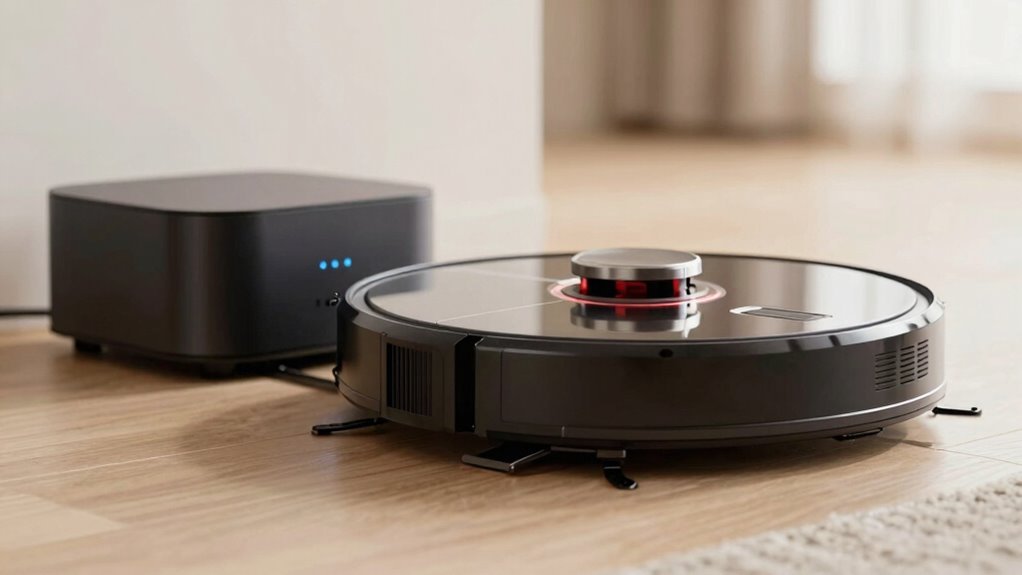
Wondering how to see what version of firmware your robot vacuum is running? Just open the companion app and tap your device’s icon—boom, you’re in!
Navigate to settings, then pick “Firmware Update” or “Software Version,” and presto, the current version pops up like your vacuum’s boasting its tech creds.
If you’ve got a model with a web interface, log in through the manufacturer’s link, click Advanced > System, and peek at the Online Upgrade list.
Some older Roombas play DJ with beeps—hold the power button for 10 seconds, count the short and long tones, then decode that beep-beep Morse code into a date.
And hey, if you see a little dot-dot-dot in the app’s corner? Tap it!
It’ll spill the firmware tea.
Your robot’s basically winking at you with info—how cool’s that? This method applies to all compatible models, and web management page access may vary by region or device.
Prepare for the Firmware Update
Getting your robot vacuum ready for a firmware update is like prepping for a tech spa day—except instead of cucumber water, it guzzles code.
First, dock your bot properly; solid alignment keeps power steady and, for Neato models, gives USB access.
Make sure the battery’s over 15% and it’s charging—interruptions can brick the system.
Plug into a reliable 24V source if your model demands it.
Next, double-check your Wi-Fi; a strong, stable signal at the dock prevents hiccups.
No spotty connections!
Remove the dustbin to expose the USB-C port, and have your cable ready—micro-USB or USB to RS-485, depending on your setup.
Grab the official firmware file and tools like Android File Transfer or Dustbuilder images, but don’t install yet.
You’re not flashing—just prepping.
Stay calm, stay charged, and your little robo-pal will upgrade like a pro.
Connect the robot directly to your computer using a USB-C cable, ensuring the connection remains stable during the update process (USB-C cable required).
Update Firmware Using the App
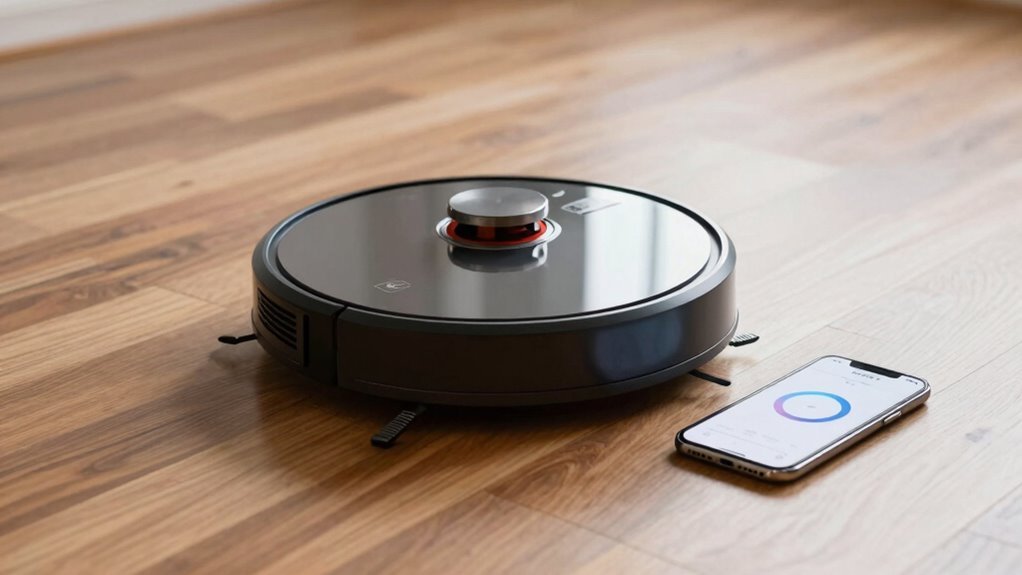
Tap into your robot’s brain with just a few swipes—updating your vacuum’s firmware through the app is like giving it a smart little glow-up.
from the palm of your hand.
- Open your robot’s app—whether it’s Xiaomi Home, ROBOROCK, or ECOVACS HOME—and make sure it’s linked to your vacuum.
- Tap the three-dot menu, scroll down, and find “Firmware Update” (or “Update DEEBOT” if you’re rolling with ECOVACS).
- Hit “Update,” then sit back—your robot downloads the new firmware and restarts automatically, no coffee break needed.
- Watch the LED pulse yellow or flash colors, and listen for a cheerful chime—your little bot’s all refreshed and ready to roll!
Just keep your Wi-Fi steady and fingers off the power button—updates hate interruptions.
Confirm the Update Was Successful
How does it feel to give your robot vacuum a brain transplant? Awesome, right?
Now, let’s make sure it took.
Open the app—no “Update” button? Good sign!
Tap the Settings gear, check Firmware Information, and you’ll see the latest ESP, PIC, or TOF versions staring back at you.
Peek under the three-dots menu too; it’ll confirm everything’s current.
On the hardware side, a solid blue or white light means “I’m ready!”
After a quick power cycle, your robot should wake up like it’s had a digital espresso shot.
Press and hold Cancel and Connect for 3 seconds—version numbers should flash by like a techy fireworks show.
If Wi-Fi cuts out, just tap Connect once.
Robot powers on, docks itself, and stays stable? Boom, you’re golden.
No errors, no blinking dramas—just a sleek, smart, up-to-date cleaning machine.
Nailed it!
Fix Common Problems & Optimize Performance
Give your robot vacuum the spa treatment it’s been dreaming of! A little love goes a long way in fixing hiccups and boosting performance. You’ll be amazed how a quick tune-up can get your little helper back on track—no drama, just clean floors.
- Clean sensors weekly with a soft cloth to stop weird bumps and false cliff detections.
- Tackle tangles in brushes and wash filters monthly—say goodbye to sad suction!
- Wipe charging contacts and keep the dock zone clutter-free so it doesn’t die lost and confused.
- Clear its path of cords and toys, and use virtual walls to block trouble spots.
Your robo-vac isn’t lazy—it’s just stuck (literally).
A few tweaks, and it’ll zoom around like it’s got a new lease on life. Who knew robot happiness was this easy?
Frequently Asked Questions
Will Updating Firmware Delete My Saved Cleaning Schedules?
No, updating won’t delete your saved cleaning schedules—you’re safe!
Most robot vacuums keep your routines intact, especially when app and firmware play nice together.
Manufacturers design updates to protect your settings, so your vacuum stays smart.
Rare hiccups happen, but they’re more glitch than the norm.
Just update regularly, keep apps synced, and your robot will keep cleaning while you kick back and relax—bonus!
Can I Update Firmware Without a Wi-Fi Connection?
Nope, you can’t update firmware without Wi-Fi—what a bummer, right?
Most robot vacuums need that internet link to grab updates, like Roomba and Roborock do.
It’s not just Wi-Fi for fun; it’s essential for new features and fixes.
Sure, older models like the 500 or 600 series might sneak updates via Osmo Pod, but that’s rare.
Without Wi-Fi, you’re stuck with what your vacuum already knows—no fancy upgrades, just basic cleanups.
How Often Should I Check for Firmware Updates?
You should check for firmware updates every month—yeah, just once a month keeps things fresh!
If you’re busy, every couple of months works, especially with pets or lots of dust.
Turn on automatic updates in the app and let the robot do the work.
It’s like giving your vacuum a mini brain boost, making it smarter, faster, and way better at dodging socks.
Who knew tiny robots could level up?
Does Firmware Update Work on Older Robot Vacuum Models?
Nope, older models like your five-year-old vacuum mightn’t get updates anymore—tech moves fast!
You’re out of luck if it’s pre-2020, like some Dreame or Narwal units; they just stop talking to new apps.
But hey, don’t toss it yet!
You could root it, like giving your robot a cool hacker makeover.
Install custom firmware, fix Wi-Fi hiccups, and enjoy a second life—cheaper than buying new, and way more fun.
Who knew old bots could party?
Can I Use My Vacuum During a Firmware Update?
No, you can’t use your vacuum during a firmware update—sorry, little buddy, it’s nap time!
Keep it docked, powered, and undisturbed.
Moving it or kicking on a clean will crash the update, and nobody wants a bricked robot.
It’ll take 10 minutes or so, play a tune when it’s done, and wow you with fresh smarts.
Just chill, grab a snack, and let the robot do its thing.
Conclusion
You just leveled up your robot vacuum—awesome! Think of it like giving your little floor ninja a brain boost. Imagine Sarah’s Roomba once got stuck on rugs, but after a quick update? Smooth sailing. No more tango with tassels! You’ve saved time, boosted smarts, and dodged future facepalms. Now, sit back, relax, and let your bot work smarter, not harder. High-five your app—you both earned it!
References
- https://www.tp-link.com/us/support/faq/2818/
- https://www.youtube.com/watch?v=00vrXSvsTSM
- https://blog.robotiq.com/knowledge/updating-the-firmware-of-my-unit-5-1736280850438
- https://www.youtube.com/watch?v=vMqCaWXfFnU
- https://jfx.ac/blog/robot-vacuum-hacking/
- https://www.robotreviews.com/chat/viewtopic.php?t=2767
- https://forums.wyze.com/t/firmware-update-from-1-6-113-to-1-6-199-bricked-my-vacuum/261536?page=2
- https://homesupport.irobot.com/s/article/550
- https://support.neatorobotics.com/support/solutions/articles/204000055841-manual-robot-firmware-update
- https://www.youtube.com/watch?v=qH8K5DyTfF8