How to Set Up Smart Maps on Your Robot Vacuum
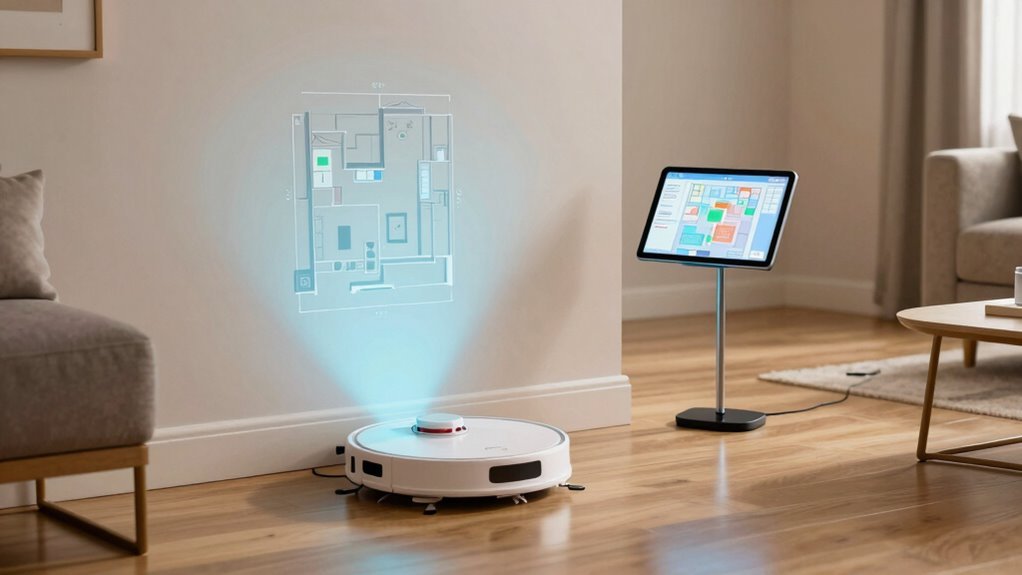
First, check if your robot supports smart maps—look for LiDAR or app-based floor plans. Charge it fully and place the dock in an open spot to ensure proper connectivity and mapping accuracy.
Let it roam and map your home on its first run; don’t interrupt the process, as this allows the robot vacuum to build an accurate smart map. Once the scan is complete, you can view and edit the layout in the app.
Tweak rooms and set no-go zones in the app like a cleaning architect for precise control. Schedule cleanings by room, because your kitchen shouldn’t get the same attention as the dusty closet.
You’ll love how smart it gets with repeated use and custom settings. There’s even more to discover with a few taps in the smart maps interface.
Check If Your Robot Supports Smart Maps
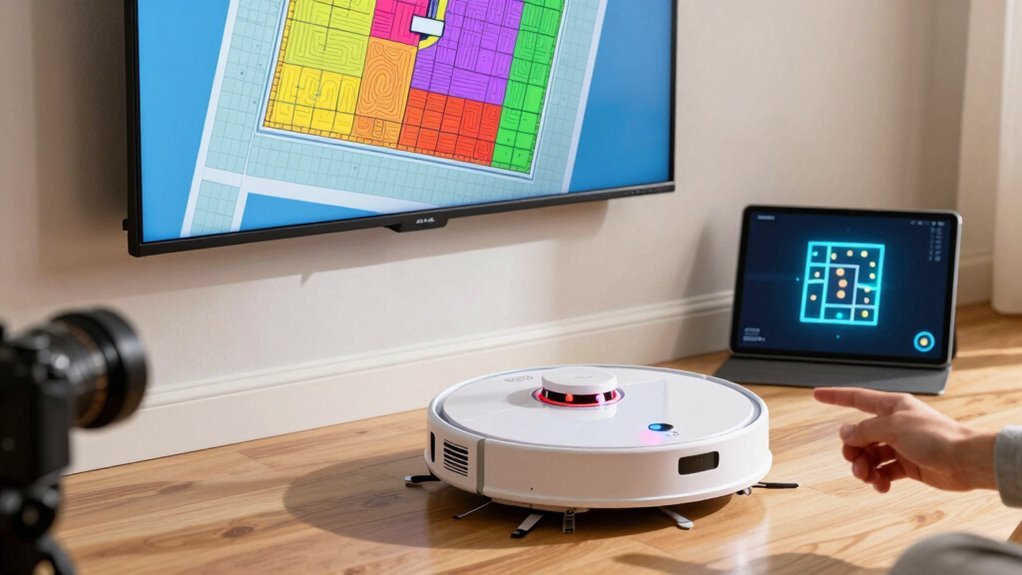
Wondering if your robot vacuum is smart enough to remember your home’s layout? Check the product specs—look for phrases like “smart mapping,” “LiDAR,” or “multi-floor mapping,” which are dead giveaways. If your model supports room selection or no-go zones, it’s definitely mapping savvy.
Peek at the app: if you see a “Map” tab or options to create zones, you’re golden. No map? Just basic start/stop buttons? Chances are, your bot forgets everything post-clean.
Also, higher-end series like iRobot’s i/j models or Roborock S/Q lines typically pack this tech, while budget bots often stick to random bump-and-run routes.
And hey, don’t trust every spinning light—some vacuums *pretend* to map but delete plans after each run. Pro tip: if the manual has a “Smart Map” section, your robot’s brain is actually learning. Who knew cleaning could get so nerdy?
Note that even advanced models like the iRobot Roomba i-series only support one map at a time, so remapping is required when switching floors.
Charge and Place Your Vacuum
How do you set your robot vacuum up for success right out of the box? Start by charging it fully—yes, even though you’re dying to watch it zoom around! Plug the dock into a grounded wall outlet, turn your bot on (check that little “I” switch), and let it sip power for 3–5 hours. Make sure it’s snug on the charger and showing a full battery light. Now, placement matters just as much as power. Here’s how to nail it:
| Spot It Right | Avoid This | Why It Matters |
|---|---|---|
| Flat, hard floor | Carpet or rugs | Better grip for docking |
| 1–1.5 ft clearance on sides | Squeezed between walls | Room to wiggle in |
| 3–4 ft clear in front | Tight corners | Smooth approach |
| Near outlet | Extension cords | No tripping hazards |
| Central, open zone | Under furniture or stairs | Sensors stay happy |
Keep it cool, not cluttered—and definitely don’t let your shoes block its “front door.”
An optional step to ease docking is to install an extension ramp, which helps the robot climb into the station with extension ramp.
Let It Create the First Smart Map
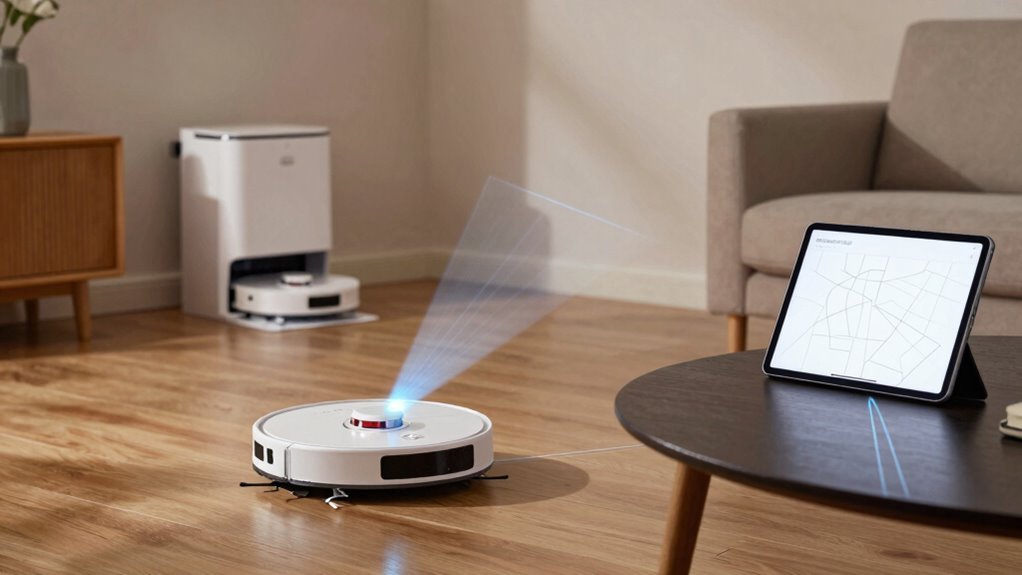
Once your robot vacuum’s fully charged and sitting snug in its dock, it’s time to let it take its first solo adventure around your home.
Hit start and let it zip around—this first spin isn’t about cleaning, it’s all about mapping.
It’s like giving your robot a home tour, minus the awkward small talk.
It uses lasers, cameras, and smarts to trace walls, dodge furniture, and peek into corners.
Keep doors open, tripping hazards clear, and resist the urge to pick it up—even if it gets stuck.
That map won’t build itself (though honestly, it kind of does).
Let it roam freely and return on its own.
No interruptions, no repositioning—your vacuum’s got this.
Think of it as letting a kid loose in a maze with a map-making kit: curious, a little clumsy, but full of potential.
Review and Confirm the Map in the App
- Check that walls, rooms, and doorways match your real layout—no ghost hallways or missing bedrooms!
- Make sure every space is there and nothing’s getting cut off like an awkward family photo.
- Confirm room labels are accurate—your “pantry” shouldn’t be labeled “cave.”
- Look for wonky shapes or duplicate rooms that mean your robot got confused (oops).
- Test it: tap a spot and say “Go there!”—if it nails the spot, you’re golden.
Edit Rooms and Set No-Go Zones
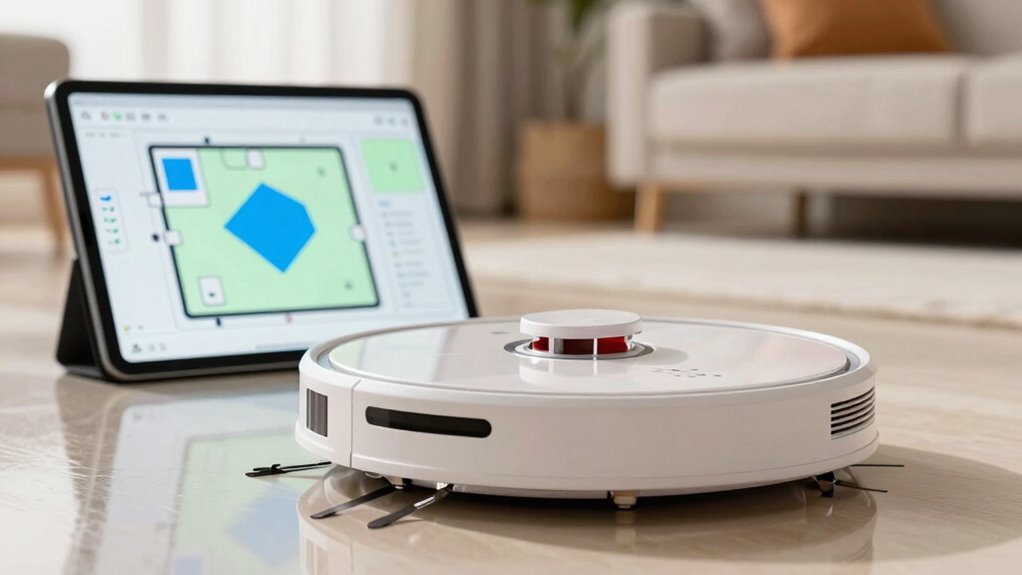
| Feature | What It Does | Why You’ll Love It |
|---|---|---|
| Divide/Merge | Split or combine rooms | Fix wonky layouts in seconds |
| No-Go Zones | Block-off areas | Save your Lego collection |
| Suction Control | Adjust power per room | Quiet cleanups in pajamas, no problem |
Schedule Room-by-Room Cleanings
Why clean the whole house when you just spilled cereal in the kitchen?
With smart maps, you can schedule room-by-room cleanings that match your real-life messes—no more wasted time or robot confusion.
Here’s how to make your vacuum work smarter, not harder:
- Pick specific rooms to clean on certain days, like kitchen floors after dinner.
- Set different suction levels for carpets vs. smooth floors—max power where you need it.
- Clean high-traffic spots 3–4 times a week, and guest rooms just once.
- Schedule the robot to run when you’re out, so it doesn’t bump into your feet—or your cat.
- Let it clean the living room right before guests arrive—talk about first impressions!
Your robot’s got your back, one room at a time.
Frequently Asked Questions
Can I Share My Smart Map With Family Members?
Yeah, you can share your smart map with family, but not by sending the map file itself.
Instead, you’ll invite them through the app using device sharing—think of it like giving them the keys to your robot’s brain.
They’ll need the same app and account access, and once in, they can control cleanings, set zones, and more.
Just remember, some brands play nicer than others.
What Happens to My Map if I Reset the Robot?
If you reset your robot, you’ll lose all your maps and have to start over—kind of like giving it a clean slate (or a robot amnesia moment).
After a full factory reset, it forgets everything: rooms, no-go zones, even where it last docked.
But don’t panic!
One full cleaning run rebuilds the map.
Just guide it gently, avoid moving it mid-sweep, and enjoy watching it rediscover your home—it’s like a tiny explorer with a broom!
Does Smart Mapping Work in the Dark?
Yes, smart mapping absolutely works in the dark—no nightlight needed!
Think of your robot using LiDAR, zipping around like a tiny flashlight-free explorer, shooting 360 laser beams 10 times per second to map every corner.
It doesn’t care if the lights are off, thanks to sensors and dToF tech that laugh in the face of darkness.
Just kick back, relax, and let it navigate like a boss, even in pitch black. Sweet, right?
Can I Save Multiple Floor Plans in the App?
Yes, you can save multiple floor plans in the app, and it’s super handy!
Most top brands let you store 2 to 5 maps, so you can cover every level of your home—no more confusing the basement with the bedroom.
Just map each floor separately during a full clean, name them something fun like “Main Level” or “Dungeon Downstairs,” and switch between them with a tap.
Your robot stays sharp, even if your stairs aren’t!
How Often Should I Update My Smart Map?
You should update your smart map every few months, like giving your robot a memory refresh.
If you’re constantly moving furniture, think of it as a workout—your map needs more reps.
Pets, kids, or a messy home? That’s a full boot camp.
But if your place stays tidy and unchanged, your robot’s map can nap peacefully for months.
Just let regular cleanings fine-tune the details—you’ll stay ahead without breaking a sweat.
Conclusion
You’ve mapped it, tweaked it, and scheduled it—now your robot’s basically a cleaning genius on wheels. Who knew chores could feel this effortless? With smart maps, it knows your living room from your bedroom, and no corner’s left behind. So why clean the old way when your home’s smartest worker doesn’t even need coffee breaks? Go ahead, kick back, and let the vacuum handle the dirt—while you enjoy your free time like a boss.
References
- https://www.youtube.com/watch?v=WI1HbWZB5EE
- https://9to5mac.com/2025/12/30/best-homekit-robot-vacuums/
- https://ca.dreametech.com/blogs/blog/multi-floor-mapping-robot-vacuum
- https://www.samsung.com/us/support/answer/ANS10002355/
- http://www.thesmarthomehookup.com/ultimate-robot-vacuum-and-mop-comparison-2025/
- https://www.eufy.com/blogs/robovac/how-do-robot-vacuum-maps
- https://homesupport.irobot.com/s/article/64102
- https://homesupport.irobot.com/s/article/163
- https://us.narwal.com/blogs/product/how-charge-robot-vacuum
- https://www.ecovacs.com/us/blog/how-to-charge-a-robot-vacuum