How to Edit Maps on Your Robot Vacuum App
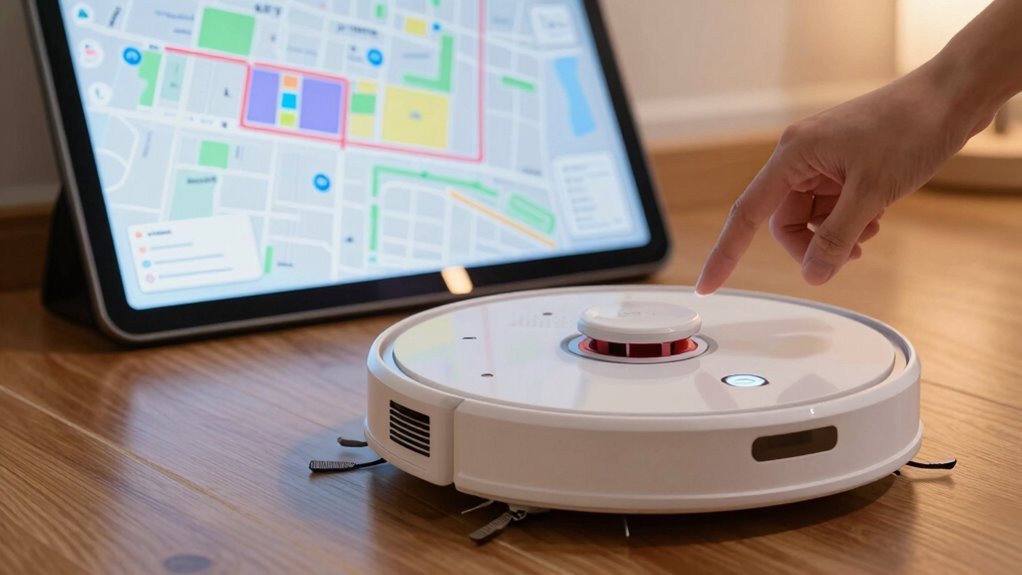
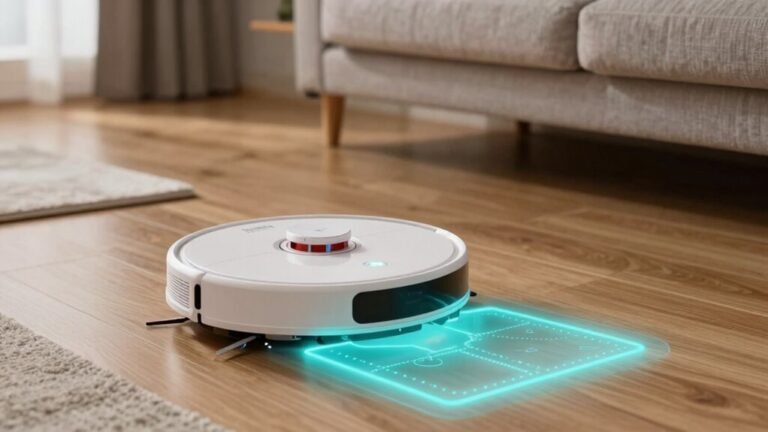
Open your robot vacuum’s app and tap the map icon to see your home layout—rooms, cleaning progress, and your bot in action, even when offline. This map feature gives you full control over how your robot vacuum navigates your space.
Adjust room sizes by merging or splitting them using simple swipe controls, then name each room for smarter, room-specific cleaning. Personalize your setup so your robot vacuum knows exactly where to focus.
Set no-go zones with a tap and drag to keep your robot vacuum away from pet mess areas or delicate rugs. These custom boundaries help protect sensitive spots while maintaining a thorough clean.
Switch between saved floor plans with a quick selection, perfect for homes with multiple levels. Your robot vacuum will adapt to each environment with ease.
Fixed a strange “ghost room”? Delete outdated restrictions and remap in well-lit conditions for accurate results. Keep your robot vacuum’s map sharp and up to date for optimal performance.
Access Your Robot’s Cleaning Map
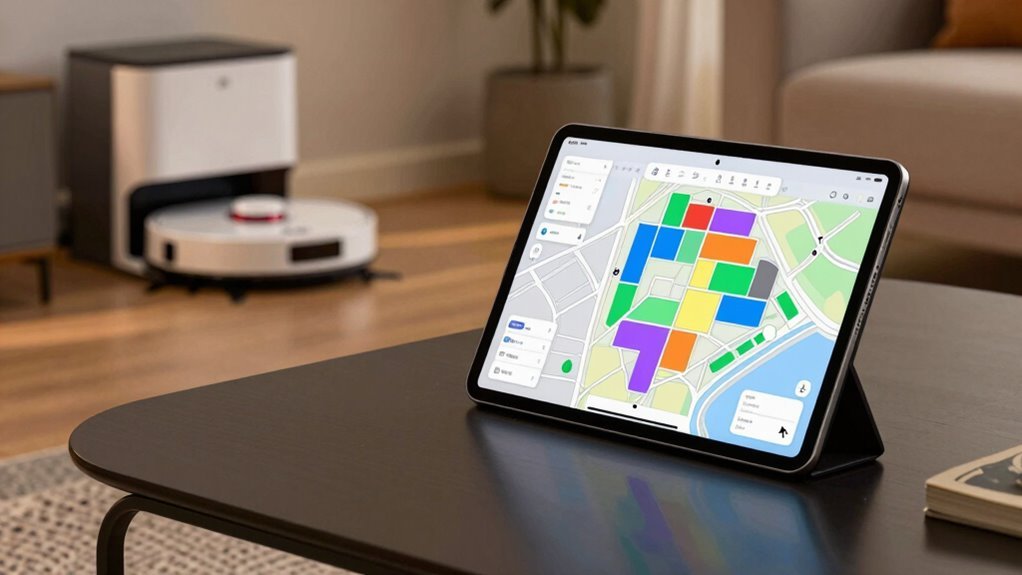
While your robot vacuum zips around turning dust bunnies into distant memories, you can keep an eye on its adventures right from your phone.
Just open the app—yep, the same one that tells your robot when to start and stop—and tap the map icon on the dashboard. It’s usually front and center, smiling at you like, “Hey, remember me?”
Once you’re in, you’ll see your home come to life: rooms outlined, progress shaded, and your little robo-cleaner zipping along like it’s on a mission.
You don’t need Wi-Fi for it to recognize your layout—the maps stay put even offline.
Watch it dodge the coffee table or finally conquer that corner it’s been avoiding.
It’s like live TV, but for floor dust.
And hey, who knew watching a robot clean could be this entertaining?
To refine the layout, tap Edit Map and follow the prompts to align map to home—this ensures your floor plan matches real-life room positions for better cleaning accuracy.
Merge or Split Rooms Accurately
If you’ve ever looked at your robot vacuum’s map and thought, “That’s not a living room and kitchen—that’s one giant dust runway,” you’re not alone.
Fix it by merging rooms in seconds—just open the app, tap into room partition mode, and select the spaces you want to combine.
Hit merge, then confirm with a tap.
Boom, one clean, unified zone!
To split a room, draw a straight, solid red line across the space using the divider tool—make sure it’s not dotted or cut short, or the robot won’t bite.
Zoom in for precision, especially in larger areas.
If the split fails, tweak the line or check the room’s size.
And yes, cardboard hacks work in a pinch—just remap with temporary walls.
Once done, name your fresh rooms and save.
Now your vacuum knows exactly where to go—and where not to nap.
The entire process takes only a few taps and merging rooms improves cleaning route efficiency.
Set No-Go Zones in Seconds
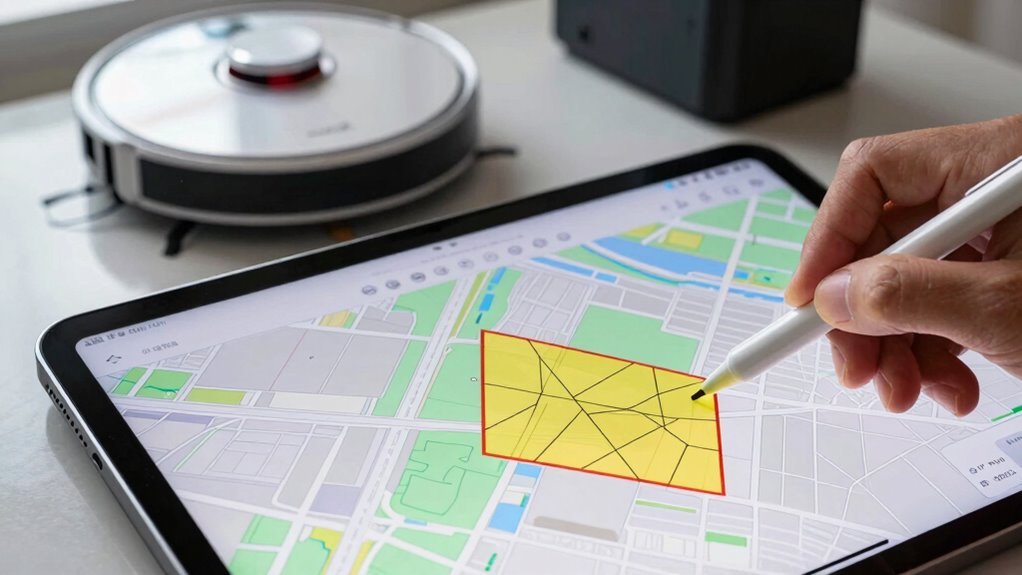
Draw a digital line in the sand—and stop your robot vacuum from wandering where it shouldn’t.
Open your app, tap into Map Settings, and with just a few swipes, drop down no-go zones like bouncers at a club: “Not tonight, robot.”
Use rectangles to block off pet bowls or Lego minefields under the couch, or draw a virtual wall to keep it out of your home office during crunch time.
Got a hybrid model? Set no-mop zones to skip rugs or wood floors—smart, right?
Just tap, drag, resize, and boom: you’re done.
Most edits save in one tap, and your robot respects the borders on its next run.
Bonus: the app pauses cleaning while you tweak things, then jumps right back in.
It’s fast, accurate, and honestly kind of fun—like giving your robot little rules without yelling.
Set limits in seconds, save your sanity, and let the bot do the rest.
Switch Between Saved Floor Plans
Ever wish your robot vacuum could keep up with your multi-floor home without missing a beat?
Good news—you’ve got options!
If you own an Ecovacs model, just tap the navigation button in the app’s corner and let it auto-detect your current floor—no heavy lifting required.
Roborock users can manually pick their floor before cleaning by tapping “Map” and selecting the right layout from the list—super handy if you’re particular about where Fluffy the robot roams.
Tapo by TP-Link? Make sure the dock’s on the right floor, then choose your plan in the app like picking a playlist.
Just remember: your robot needs full maps already saved, and those docks stay put once cleaning starts.
Think of it as high-tech musical chairs—except everyone (and every floor) gets cleaned!
Fix Map Errors: Split Rooms, Ghost Zones
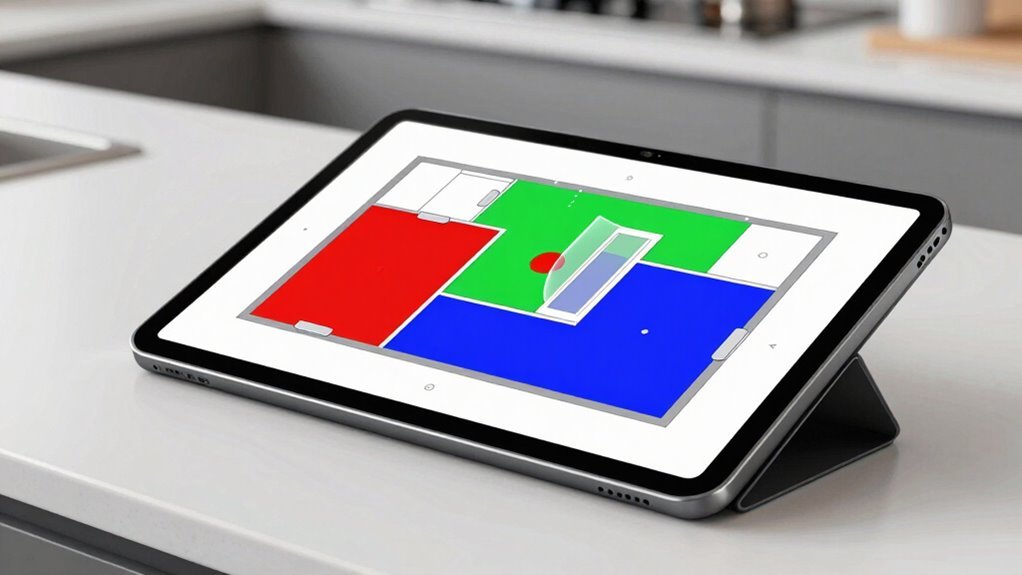
You’ve got your floor plans sorted and Fluffy the robot knows which level to tackle—awesome! But if your kitchen’s split in two or there’s a mysterious “room” under the coffee table, it’s time to fix those map errors. Split rooms wrong? Drag a divider line to merge or separate spaces like digital clay. Ghost zones making Fluffy paranoid about clean floors? Zap those phantom walls with a tap. Keep your map sharp—real walls only, no fake no-go zones from last year’s holiday tree.
| Issue Type | Common Cause | Quick Fix |
|---|---|---|
| Split rooms | Narrow doorway or clutter | Use “Divide Room” tool |
| Ghost zones | Old no-go zones or sensor glitch | Delete inactive restrictions |
| Phantom walls | Mirrors or shiny floors | Remap in even lighting |
| Map drift | Sensor misalignment over time | Recalibrate and remap |
| Incorrect labels | Auto-generated names | Rename rooms after splitting |
Improve Cleaning With Accurate Maps
Cleaning smarter starts with a map that actually knows your home’s layout, not one that thinks your ottoman is a whole new dimension.
When your robot vacuum sees your space clearly, it cleans like it’s got a plan — because it does.
No more wild bumping into furniture or missing the spot under the coffee table where crumbs go to retire.
- You’ll get systematic, row-by-row cleaning that covers every inch without wasted moves
- It adapts to messier zones, like crumb-heavy kitchens or pet areas, with stronger suction right where you need it
- And with smart obstacle handling, it navigates tight spaces smoothly, dodging clutter and avoiding stair tumbles
Accurate maps mean fewer “Did it even go in there?” moments.
Your robot gets back to its dock faster, stays charged longer, and you actually *see* the results — because a great clean isn’t luck, it’s precision.
Frequently Asked Questions
Can I Share My Map With Family Members?
You can’t share your map directly, but you can still let family in on the fun.
Just add them as members through your app, and they’ll help control the vacuum.
Think of it like sharing your Netflix—but for cleaning.
They won’t edit maps independently, but hey, teamwork makes the floor work!
Just make sure everyone’s in the same country—no international squad takeovers yet.
Does Editing the Map Affect Cleaning Schedules?
So, does editing the map throw your schedules into chaos?
Not always—but beware!
Renaming rooms? You’re golden.
Splitting, merging, or trashing a map, though? Uh-oh—your robot might get confused and clean the wrong spot, or worse, take a nap instead.
After big changes, double-check or rebuild schedules to keep things running smoothly.
Think of it like house rules: change the floor plan, and everyone—including your robot—needs a quick refresher!
Will Map Changes Sync Across Multiple Devices?
Yes, your map changes sync across all your devices automatically—no magic beans needed!
Just rename a room or tweak a zone, and bam, it’s updated on every phone or tablet logged into your account.
Everyone in the family sees the same smart updates, so there’s no arguing over which space is the “lounge” or “chill zone.”
Just make sure all devices have internet—they’ll catch up once back online.
Easy, right?
Can I Download the Map for Backup?
Nope, you can’t grab that map and tuck it in your pocket like a treasure map—most brands keep it locked in their app’s treasure chest.
You’ve got *in-app* backups, sure, but downloading it like a photo? Rare.
Some high-end bots let you sneak it out via cloud save or smart tricks, but for most, it’s “save it there, lose it if the app crashes.”
Always check your model—some bots are more generous than a pirate with free snacks!
Do I Need Wi-Fi to Edit the Map?
Yeah, you’ll need Wi-Fi to edit your robot vacuum’s map—it’s not optional.
No internet, no tapping to split rooms or draw no-go zones.
The app talks to the cloud, and the cloud talks to your bot.
Think of it like a team huddle; everyone’s gotta be connected.
Skip Wi-Fi, and you’re stuck with last season’s map.
Sorry, offline mappers—this one’s a no-go without the web!
Conclusion
You’ve got this! Yeah, editing maps might feel tricky at first—like teaching your Roomba a new dance move—but once you try it, you’ll wonder how you ever cleaned without it. Merging rooms, blocking off spots, switching floors? All super simple. And no, your robot won’t get confused (it’s smarter than it looks). Give it a shot, and watch your vacuum work like it finally *gets* your home. Clean magic, no cape needed!
References
- https://www.tp-link.com/us/support/faq/3544/
- https://vacuumwars.com/the-complete-roborock-app-guide/
- https://us.narwal.com/blogs/product/robot-vacuum-navigation-guide
- https://www.dreametech.com/blogs/blog/how-do-robot-vacuums-navigate
- https://www.youtube.com/watch?v=ApYXSNwSaqk
- https://www.youtube.com/watch?v=asDvVUaZkJQ
- https://homesupport.irobot.com/s/article/64102
- https://www.eufy.com/blogs/robovac/how-do-robot-vacuum-maps
- https://support.dreametech.com/hc/en-us/articles/11188465893135-Easily-Merging-Rooms-in-Your-Dreame-Map
- https://dreameservice.zendesk.com/hc/en-us/articles/11640949309071-Mastering-Map-Splits-in-Dreame-Home-or-Mi-Home-APP