When Should You Remap Your Robot Vacuum?
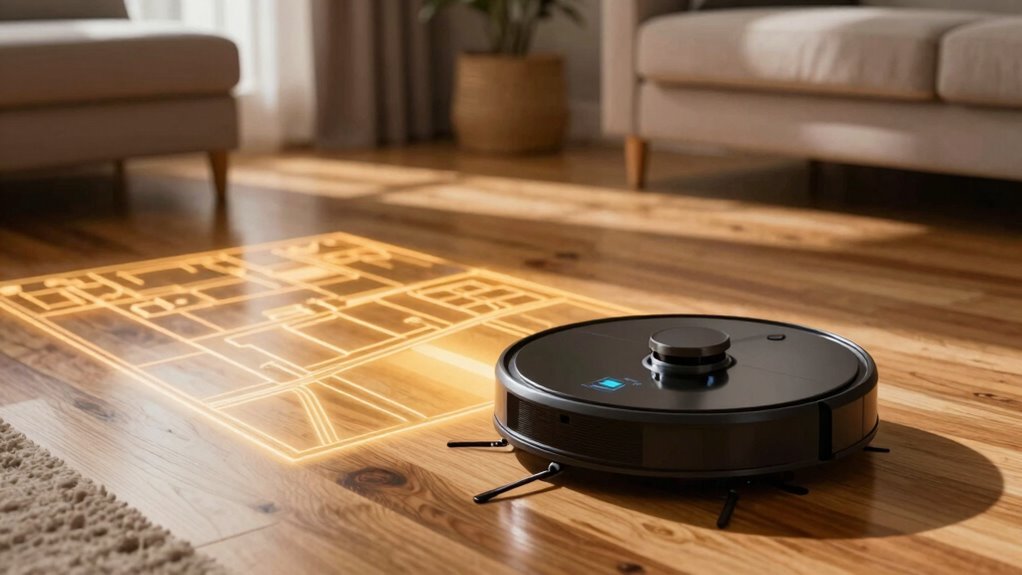
You should remap your robot vacuum when there are significant changes in your home layout, such as furniture rearrangements or room remodeling. An outdated map can cause your robot vacuum to spin in circles, miss spots, or hug walls, indicating it’s struggling to navigate.
If your robot vacuum can’t find its dock or keeps getting stuck, it’s likely due to inaccurate mapping. For major changes, perform a full remap to ensure accuracy.
Minor adjustments in the environment often don’t require a full remap—most modern robot vacuums can adapt on the fly. Keep your robot vacuum’s map up to date so it stays efficient, smart, and stress-free during cleanings.
Why Robot Vacuum Maps Need Updates
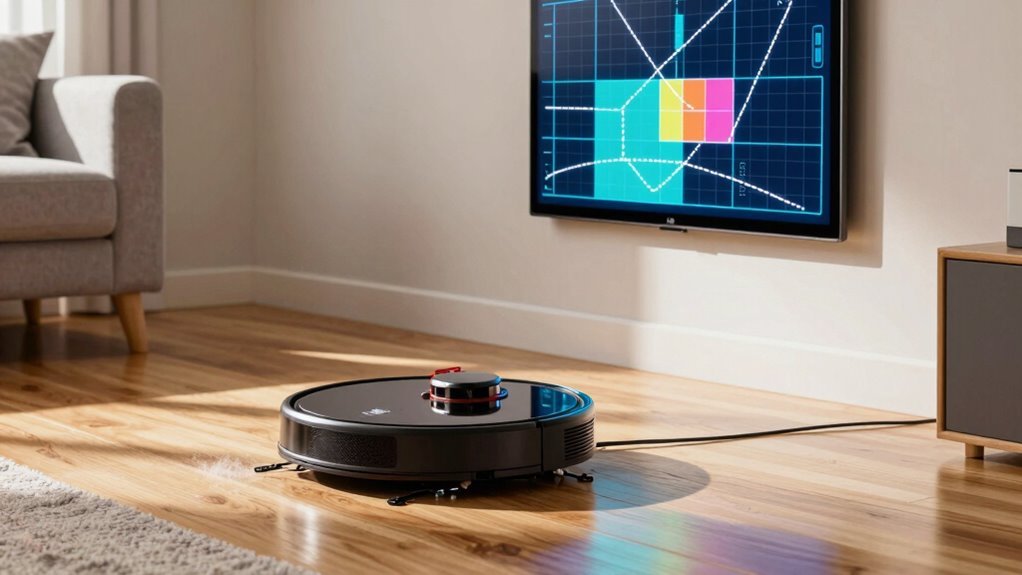
Ever wonder why your robot vacuum suddenly acts confused when you move the couch? That’s because it still “sees” the old map in its digital brain! Robot vacuums rely on detailed maps to zip around efficiently, and any furniture shuffle—like adding a pet bowl or tucking away the Christmas tree—throws off their carefully memorized layout.
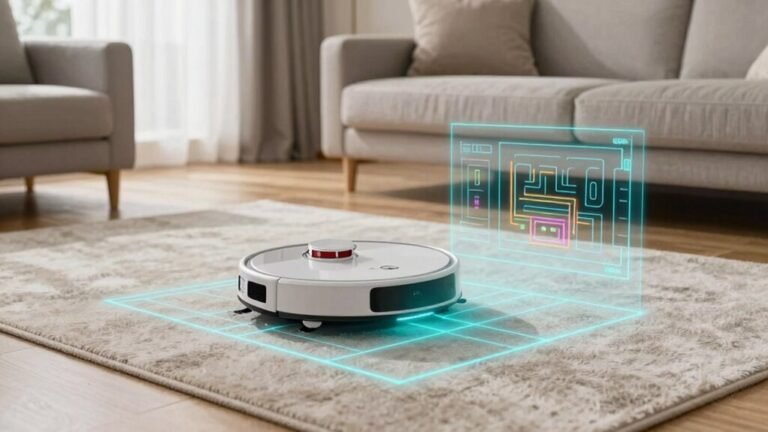
Even new obstacles or open spaces mess with their sense of direction. Technologies like vSLAM and LiDAR help them adapt, but only if they’ve got accurate data. Without updates, your bot might bump into things, skip spots, or get stuck in weird places.
And no, it can’t just “figure it out” like you’d after rearranging the living room. A fresh map lets it clean smarter, not harder, slashing cleaning time and covering every inch. Think of it as giving your robo-pal a quick memory boost—because even smart robots need a little help after spring cleaning! Systematic navigation ensures your robot vacuum follows an optimized path based on updated environmental data.
Is Your Robot Acting Confused? Common Signs It Needs a Remap
What’s going on when your robot vacuum suddenly starts hugging the wall like it’s too shy to enter the living room? It’s probably confused and silently begging for a remap. If it’s stuck in loops, dodging invisible furniture, or ghost-vacuuming wet floors, something’s off. Check these common red flags:
| Sign | What It Means |
|---|---|
| Hugs walls or stalls often | Dirty cliff sensors or poor lighting |
| Spins in circles | Software glitch or sensor misalignment |
| Misses rooms or repeats spots | Outdated map or firmware issues |
| Can’t find dock | Weak signal or dock placement problems |
| Gets stuck on small objects | Obstacle detection failure |
Don’t panic—these quirks are fixable. A quick clean, firmware update, or remap gets your little robo-helper back on track, mapping smart and cleaning right where it should. For best results, ensure the dock has adequate clearance to support reliable recharging and navigation. This can be achieved by keeping the area around the dock free of obstructions and ensuring it’s placed on a flat surface, which aligns with Position the dock well.
After Moving Furniture or Remodeling
So your robot wasn’t just being shy when it hugged the wall—turns out it was dealing with a seriously outdated idea of your floor plan.
If you’ve moved furniture or remodeled, your bot might still “see” that couch where it used to be.
Good news: Wyze and iRobot models adapt on the fly, updating maps during cleaning after small shifts—like moving a chair or rolling out a rug.
But major changes? That’s when things get wobbly.
Shift a bed or reposition your sofa mid-clean, and your vacuum might loop like it’s chasing its own tail.
Spot cleaning helps—it overrides the old map and explores fresh.
For big rearrangements, though, a full remap is your best friend.
And no, you can’t just tell it to “fix the living room”—current apps don’t let you remap one room.
Skip the confusion: after remodeling, give it a full run to build a brand-new layout.
Your robot will thank you with better clean routes and fewer wall-staring contests.
When Cleaning Performance Drops
When your robot vacuum starts acting more tired than a teenager on a Monday morning, it’s probably not laziness—it’s struggling with a clogged filter, a tangled brush, or a dustbin packed fuller than a subway at rush hour.
You’ll notice weak suction, louder noises, or it just quits mid-clean—classic signs it’s begging for a little TLC.
Empty that dustbin first, then check for hair-wrapped rollers or blocked brushes slowing things down.
A clogged filter restricts airflow and can even make your vacuum overheat and shut down.
Don’t forget the sensors—dust on them makes your bot act confused, bumping into walls like it’s had too much coffee.
Clear the suction path, wipe down sensors with a microfiber cloth, and give those wheels a quick check for stray debris.
A few minutes of cleaning keeps it running strong, so it actually cleans instead of faking a breakdown.
How Often Should You Remap?
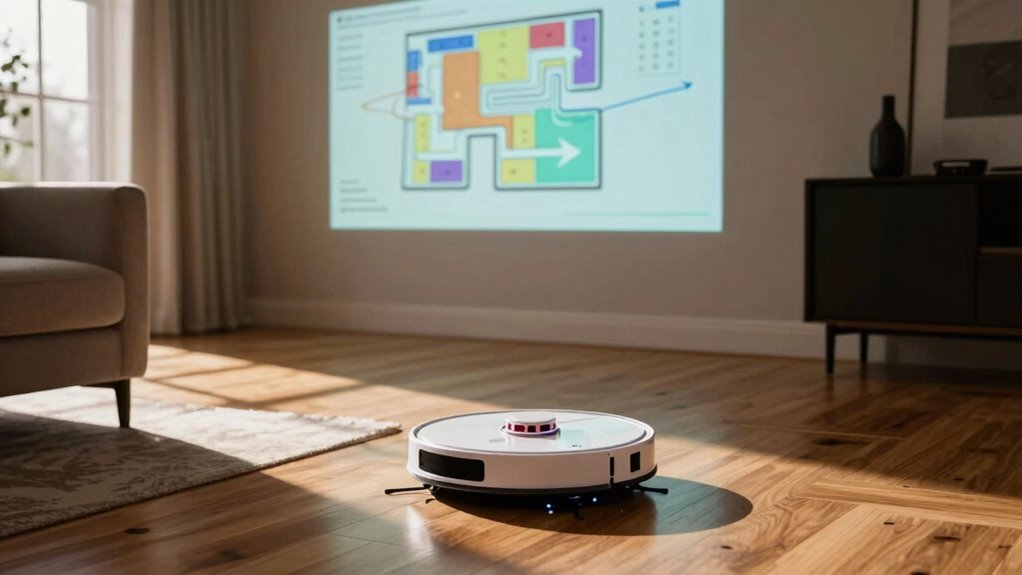
How often should you hit the reset button on your robot vacuum’s map?
It depends on your home’s chaos level, but regular remapping keeps cleaning sharp and efficient.
Think of it like updating your phone’s OS—smooth, smart, and ready for action.
Daily users in large or multi-level homes benefit from fresh maps every day or two, especially if you’ve got pets or kids redecorating with crumbs.
If your place sees less traffic, remapping every few days works just fine.
Over time, accurate maps prevent your vacuum from ghost-walking through walls or vacuuming the same spot twice.
- Picture your vacuum confidently zipping around the coffee table, not bumping into it like it’s blindfolded.
- Imagine it tackling pet hair in the living room today and mopping the kitchen tomorrow—all by itself.
- See it avoiding that one rogue sock under the couch, because yes, it remembers now.
Adding Rugs or Rooms? Update the Map
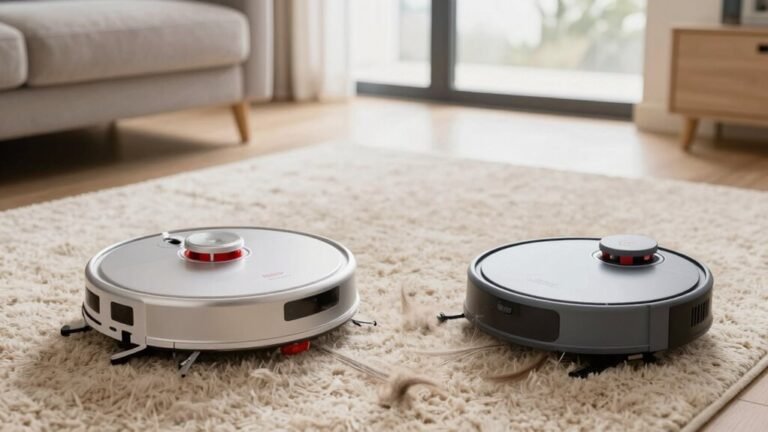
While your robot vacuum’s map isn’t set in stone, it definitely likes to stay in the loop when you’re switching things up—like dropping a plush shag rug in the living room or turning the spare bedroom into a yoga studio. If you’ve added new rooms or rugs, it’s time to tweak the map!
Use the app to draw rectangle carpets, assign them to rooms, and even boost suction where needed. You can split or merge rooms, rename them, or slap on fun colors—because who doesn’t love a rainbow-labeled pantry?
Drop virtual walls to block fringed rugs or skip mopping on delicate ones. After edits, run a full clean to lock in changes, not a quick spot sweep.
Think of it as a housewarming gift for your robot—make it feel at home, and it’ll clean like it owns the place!
How to Start a New Map Scan
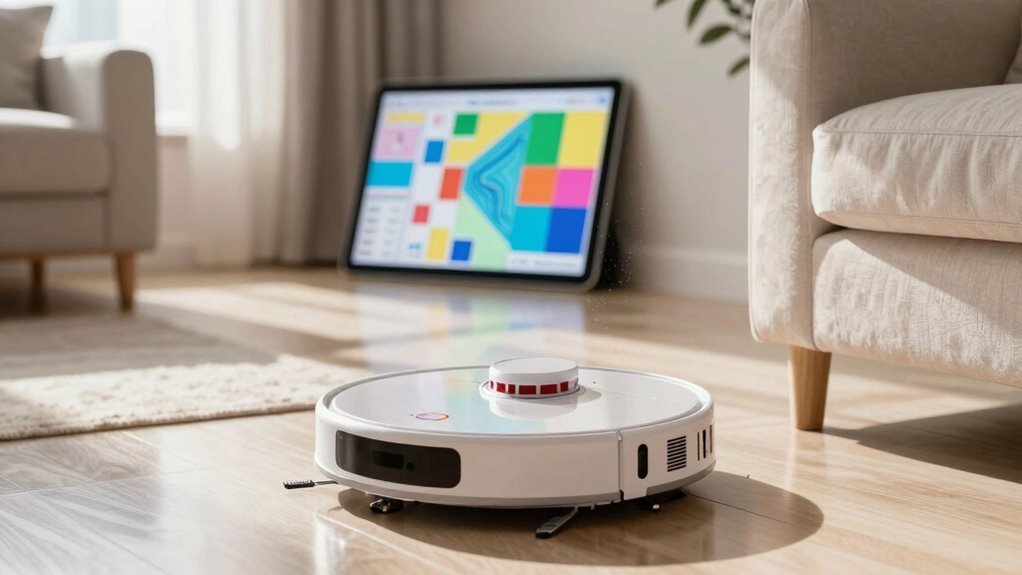
Grab your robot vacuum and get ready to go on a little mapping adventure—you’re about to give it the ultimate tour of your home.
First, clear the way by picking up loose wires, socks, or anything else that might send your robo-pal off course.
Make sure all doors are open so it can roam freely, and stash away high-pile rugs if they’re a tripping hazard.
Then, place your vacuum in the area you want to map—preferably near its dock.
- Open your app and tap “Start Mapping”—whether it’s Tapo, Narwal, or Roborock, it’s just one click away.
- Watch it zoom around, scanning every corner like a tiny explorer on a mission.
- Let it finish without nudging or picking it up—teamwork means not interrupting its genius at work.
Sit back, relax, and let the mapping magic happen!
Switching Between Multiple Floor Plans in the App
Since your robot vacuum’s got the brains of a tiny cartographer, switching between floor plans in the app is as easy as telling your phone which level of your home deserves a spa day next. You just tap the map you want, and boom—your vacuum knows exactly which floor to tackle.
Most bots store 2–4 maps, so whether it’s the messy main floor or the serene upstairs, it’ll pick the right one. Advanced models even auto-detect where they are, so you don’t have to babysit the switch.
The app lets you rename floors, customize zones, or tweak schedules per level—because your basement gym shouldn’t get the same scrub as the kitchen. If things go sideways, just check your saved maps or restart the app.
It’s like GPS for grime, and you’re the boss of the route. Clean smarter, not harder—your robot’s got this.
Frequently Asked Questions
Can I Remap My Robot Vacuum at Night?
You can totally remap your robot vacuum at night—no rules say you can’t!
Just make sure the lights are decent if it uses visual tech, and the space is clear.
It zips around mapping in silence, so it won’t wake anyone.
Think of it as a late-night adventure for your little robo-friend.
Just charge it first, and let the mapping magic happen under the moonlight—how cool is that?
Does Remapping Delete My No-Go Zones?
Yeah, remapping wipes your no-go zones—poof, they’re gone!
When you delete the old map to start fresh, all those custom boundaries disappear too.
Don’t worry, though—you can redraw them after the robot finishes scanning.
Just fire up the app, tweak the new map, and set your virtual fences again.
Think of it like rebooting your robot’s memory: clean slate, same smarts, but you’ve got a little DIY fun ahead!
Will Remapping Improve Battery Life?
Yes, remapping can actually boost your battery life!
You’ll cut down on those pesky back-and-forth zigzags that drain power fast.
With a fresh map, your vacuum zips through longer, smarter paths and makes fewer turns—saving energy and time.
It’s like giving your robot a GPS upgrade!
Less confusion, fewer retries, and way fewer “U-turns of doom.”
You’ll both be happier—your vacuum with more juice, and you with cleaner floors!
Can I Use Voice Commands to Start a Remap?
Nope, you can’t use voice commands to start a remap—sorry, Alexa and Google can’t help here.
You’ve gotta open the app, tap that remap button, and guide your little robot buddy like a pro.
It’s not as hands-free as talking to your vacuum (we wish!), but it’s quick and easy.
Just say, “Hey robot, time to make a new map!”—then do it yourself. 😉
Does My Robot Save Multiple Map Versions Automatically?
Yeah, your robot can save multiple map versions, but it depends on the brand.
Ecovacs keeps up to 3 permanent maps plus a temporary one, while Roborock auto-saves and backs up your current layout.
Wyze only updates maps after full cleans—skip spot cleaning if you want fresh layouts!
Other brands like eufy and iRobot? They’ve got backup smarts too.
Just don’t forget to manually save edits, or poof—your tweaks vanish like crumbs in a vacuum!
Conclusion
You’ve swept through the basics like Odysseus steering home—minus the sirens, thankfully. If your robot’s acting lost, sluggish, or just confused after rearranging furniture or tossing down a new rug, it’s time to remap. Don’t wait for it to bump into walls like it’s playing pinball. A fresh scan takes minutes and turns chaos into clean, smooth sailing across your floors.
References
- https://us.3itech.com/blogs/news/how-does-robot-vacuum-mapping-work
- https://www.ecovacs.com/us/blog/lidar-vs-vslam-navigation-what-are-the-differences
- https://us.narwal.com/blogs/product/robot-vacuum-navigation-guide
- https://forums.wyze.com/t/wyze-robot-vacuum-map-editing-additional-enhancements/142458
- https://www.sparkoz.com/Explore/How-AI-Robot-Vacuum-Cleaners-Learn-Traffic-Patterns-in-Shopping-Malls.html
- https://www.eufy.com/blogs/robovac/how-do-robot-vacuum-maps
- https://support.irobot.co.uk/s/article/9129
- https://techsalesonline.com.au/blogs/articles/dealing-with-robot-vacuum-navigation-issues-obstacles-and-solutions
- https://us.narwal.com/blogs/product/troubleshoot-robot-vacuum-navigation-issues
- https://www.robotspecialist.com.au/blogs/news/troubleshooting-common-robot-vacuum-issues