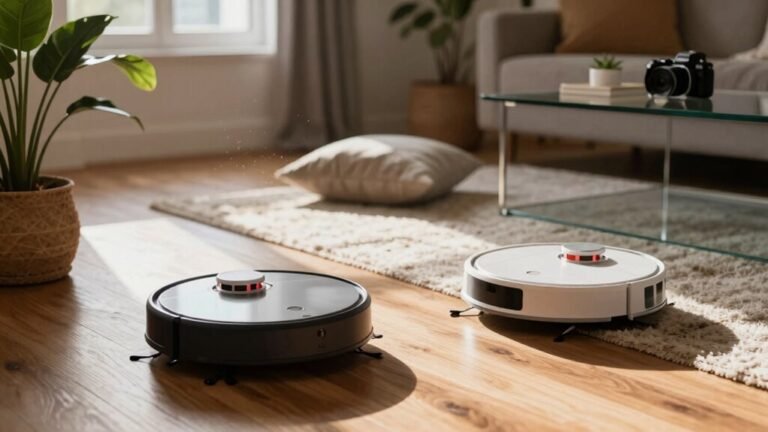
Setting Up Rooms and Zones on a Smart Map
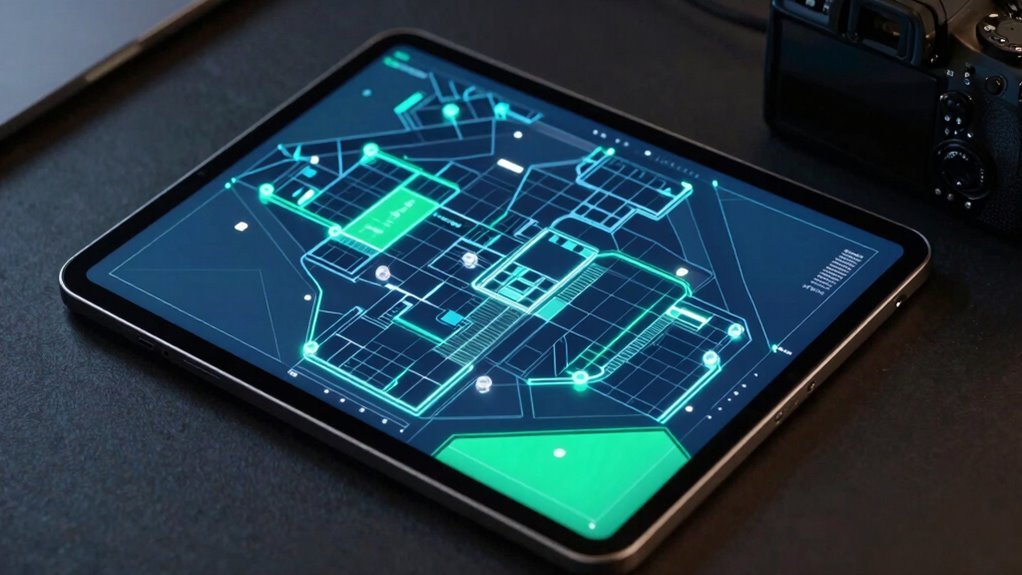
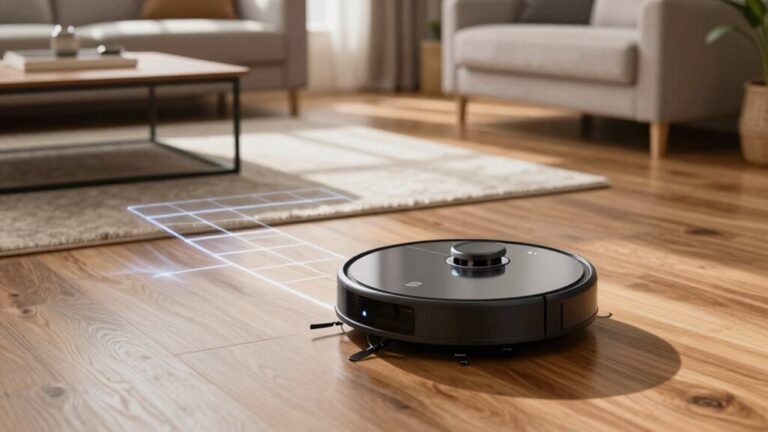
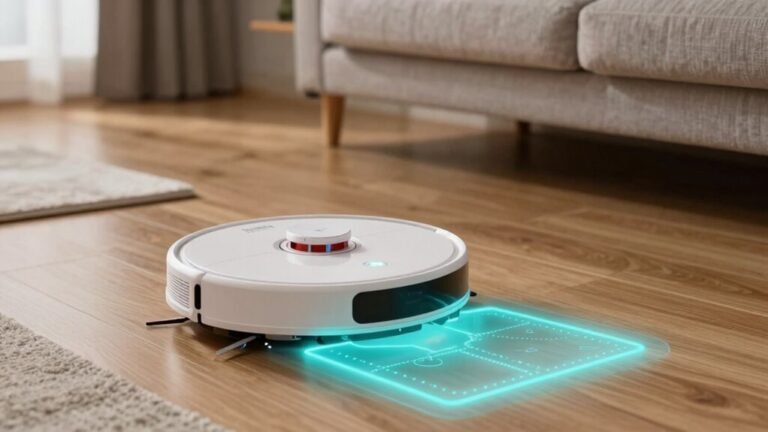
You snap a map of your home with your robot’s smart sensors, creating a smart map that lets you customize cleaning areas. Tag rooms like “Kitchen” or “Chill Zone” to personalize your robot’s navigation and control.
Draw custom cleaning zones to target high-traffic spots or spills quickly. Set up No-Go Zones to block off messy cords, pet bowls, or other obstacles.
Name each room clearly and schedule cleanups for consistent maintenance. A well-organized smart map saves time, energy, and keeps your home in order. Got a sock avalanche? You’ll see how to handle that next.
How Smart Mapping Creates Your Home Layout

Ever wonder how your robot vacuum goes from bumping into the coffee table to zipping around like it owns the place?
Well, it’s not magic—it’s smart mapping!
Your vacuum uses sensors like lidar or cameras to scan the room, spotting walls, furniture, and open spaces as it moves.
It tracks its every turn with tiny built-in sensors, gradually building a rough layout in its “mind.”
Each cleaning run refines the map, smoothing out kinks and sharpening edges.
Permanent walls stick around in the map, while your stray socks? Gone in a flash.
Over time, it connects the dots into rooms, spots doorways, and even tells floors apart.
Before you know it, that clumsy newcomer becomes the organized, efficient helper you never knew you needed—minus the coffee spills.
This process relies on Indoor Positioning System (IPS) principles to maintain accurate location awareness indoors.
Draw Custom Cleaning Zones on Your Smart Map
- Open your app’s Smart Map, tap Edit, then select Add Clean Zone.
- Drag and resize a rectangle (or polygon) right over the messy hotspot.
- Save it as a favorite—because yes, your robot can have go-to zones.
- Start a quick clean anytime, just by tapping your custom zone.
Custom cleaning is available after map creation.
You’ll save time, boost suction on dirty areas, and feel like a cleaning wizard—all without sweeping the whole house.
Who knew robot parenting came with interior design perks?
Set Room Names for Smarter Voice Commands
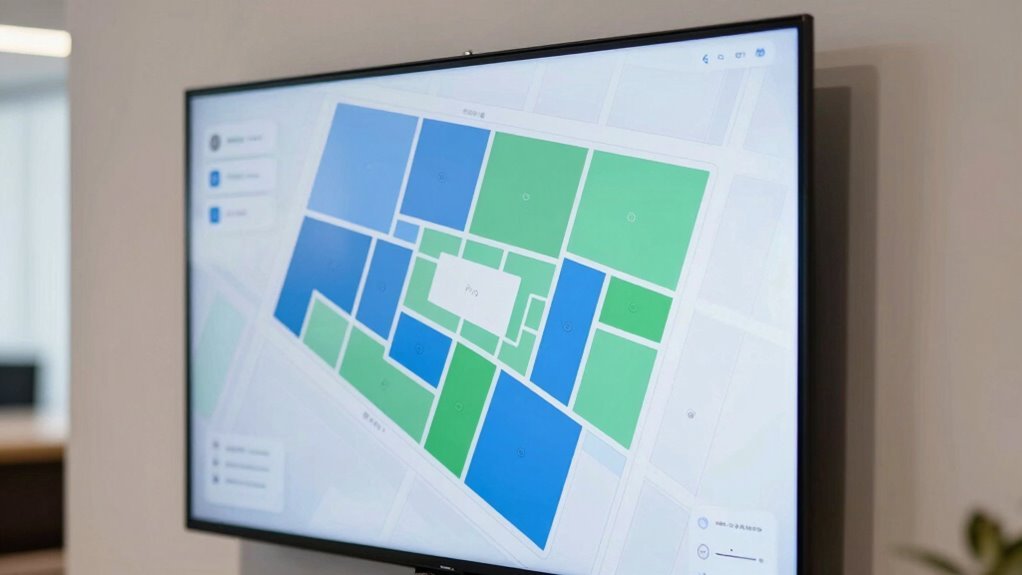
What if your voice assistant actually knew where you were talking about—no guessing, no mix-ups, just clean, instant control with a single command?
You can make this happen by naming your rooms clearly and smartly.
Ditch “Bedroom 2” and go for “Kids Bedroom” or “Guest Room”—names you actually say out loud.
Short, descriptive labels like “Kitchen” or “Media Room” help your assistant understand you faster.
Use natural names you’d tell a friend, like “Den” instead of “Living Room,” so commands feel effortless.
Group devices by room, and name them like “Kitchen Light” for smooth control.
Whether you’re on Alexa, Google, or HomeKit, consistent names mean you’ll never shout across the house again.
Just say, “Turn off the lights,” and boom—it knows which room.
Name it right, and your home really *gets* you.
Who knew your vacuum could keep up better than your kids?
Block Areas With No-Go Zones
Now that you’ve got your rooms named so your voice assistant knows exactly which lights to kill or what zone to warm up, let’s keep that smart momentum going—this time with your robot vacuum.
Stop it from wandering where it shouldn’t by drawing No-Go Zones right on your smart map.
These virtual boundaries act like “keep out” signs for trouble spots.
Here’s how they help:
- Shield pet bowls – keep your robot from playing soccer with Fido’s dinner.
- Block under-furniture zones – stop it from getting stuck like a turtle on its back.
- Skip messy cords and decor – avoid tangled wires or tipped knick-knacks.
- Set No-Mop Zones – because no one wants soggy rugs or wet socks.
Just open your app, tap “Edit Map,” draw the zone, and save. It’ll remember every time—like a tiny vacuum with a photographic memory.
Schedule Cleanings by Room or Zone
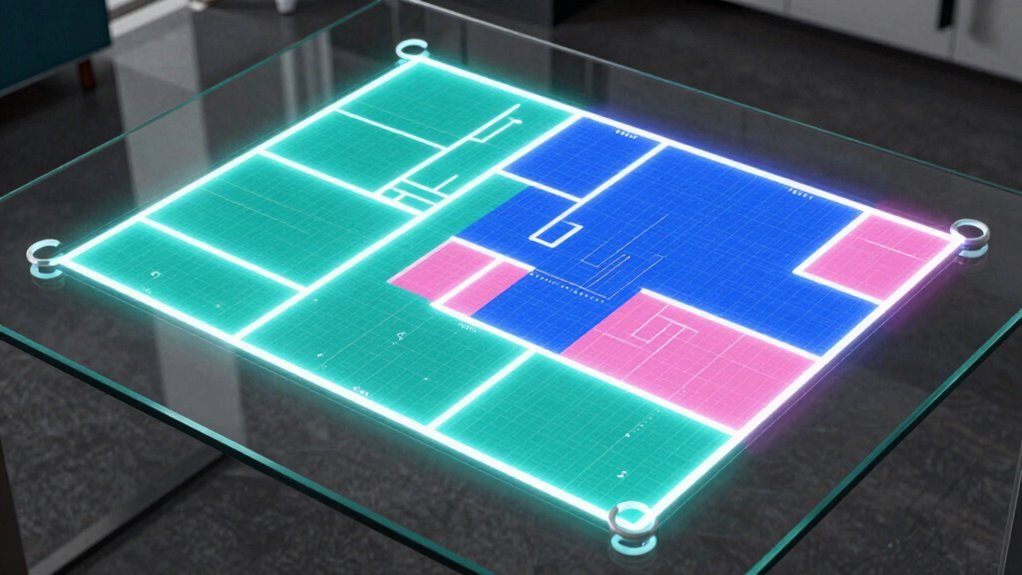
Why clean the whole house when only the kitchen floor is begging for attention? With room and zone scheduling, you don’t have to.
After your robot maps your home, you can name rooms and draw custom zones—like “under the dining table” or “near the dog bowl”—then set cleanings for just those spots.
Schedule the kitchen daily after dinner, bedrooms three times a week, and entryway zones every morning to tackle tracked-in mud.
You can even pick suction power and set quiet-mode runs for busy workdays.
It’s smart, efficient, and saves battery life by skipping clean floors.
High-traffic areas get extra love, while less-used rooms chill until they’re due.
Plus, your robot finishes faster, recharges less, and stays ready for action.
It’s like giving each part of your home a personalized spa day—no overkill, just the right clean, right on time.
Automate Multi-Room Cleaning
Let your robot do the walking—room to room, floor to floor—all without you lifting a finger.
With smart mapping and multi-room automation, your robot handles the hard work while you kick back and relax.
Here’s how to make it happen:
- Set cleaning priorities—tell your robot which rooms need daily vacuuming (like kitchens or pet zones) and which can wait.
- Use smart maps—let your robot learn your home’s layout so it zips through rooms efficiently, no bumping or getting lost.
- Enable hybrid cleaning—robots that vacuum *and* mop can tackle multiple rooms in one go, switching modes like a pro.
- Sync with voice or apps—say “Hey Google, clean the living room and hallway,” and just like magic, it gets done.
Your home stays spotless, and you stay stress-free—now that’s cleaning on autopilot!
Update Your Map as Layouts Change
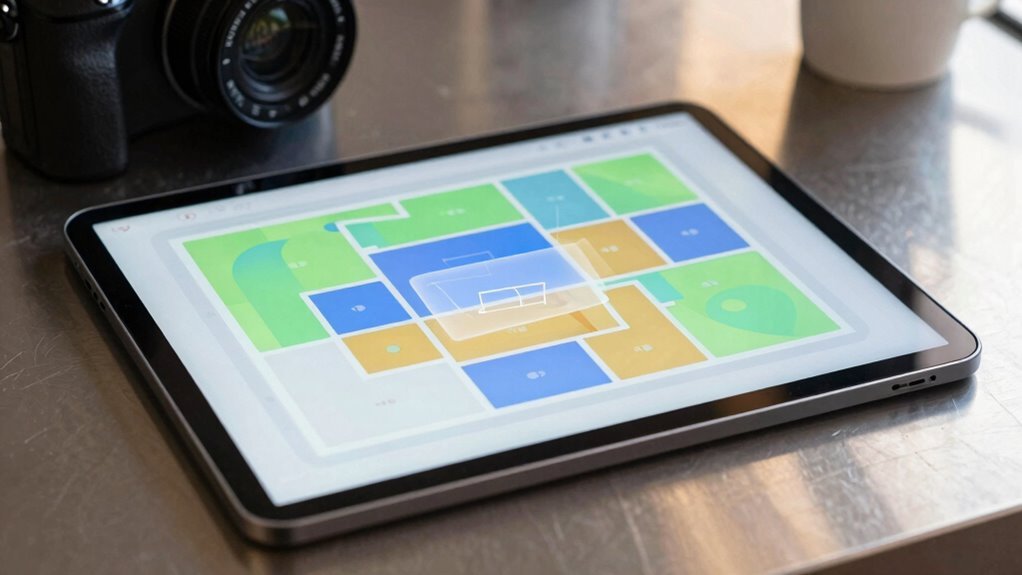
When your home gets a little glow-up—whether you’ve knocked down a wall, rearranged the living room jungle, or finally corralled that pile of boxes—your robot’s map might still be living in the past.
Time to give it a reality check!
Rescan the area so its LIDAR knows the new hangout spots, then tweak room boundaries in the app like you’re redrawing kingdom borders.
Merged the kitchen and dining room?
Split a bedroom into a nursery?
Just drag, drop, and relabel those digital dividers.
Don’t forget to update no-go zones around new furniture or precious houseplants.
Run a quick clean in each room to make sure your bot navigates like it owns the place—because, well, it kind of does.
Keep maps fresh, labels smart, and your robot won’t get lost on its way to vacay—uh, I mean, vacuum.
Fix Smart Map Recognition Problems
Got a rogue robot that thinks your bathroom is the kitchen? Don’t panic—smart map mix-ups are common, but totally fixable! Start fresh with these steps to get your robot back on the same page (and map) as you:
- Reposition the dock against a flat wall, keep it level, and clear space around it so your robot can align properly and avoid map splits.
- Clean the sensors—wipe the LiDAR, camera, and cliff sensors—so dust isn’t fooling your robot into seeing ghost walls.
- Update firmware and apps, then check your Wi-Fi; glitches love hiding in outdated software or weak signals.
- Rebuild the map if needed—delete wonky layouts and remap in one go, with doors consistent and clutter cleared, for a crisp, accurate home model.
Your robot’s not confused… it just needed clear directions!
Use Rooms and Zones to Target Cleaning
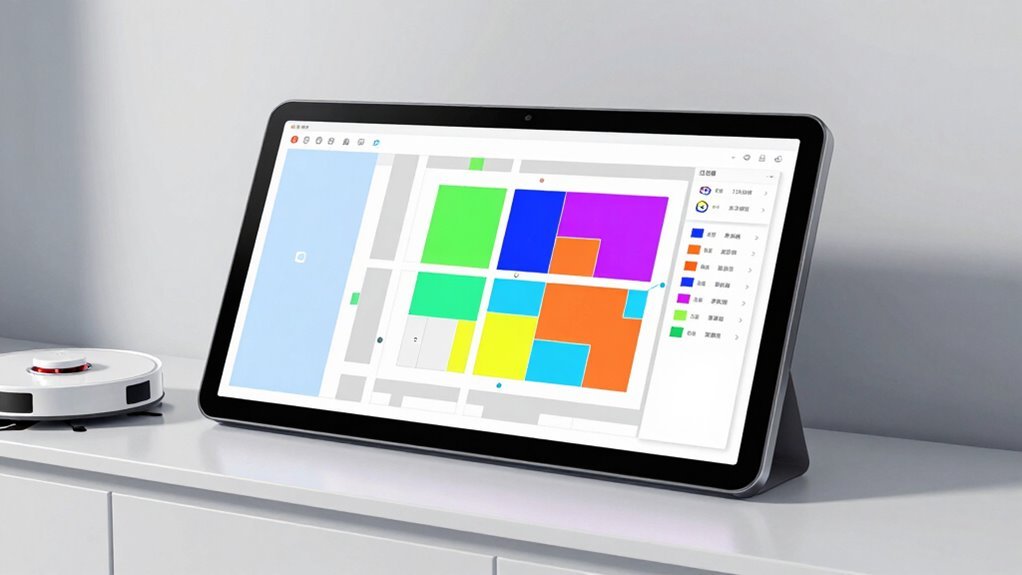
Now that your smart map makes sense—no more mistaking the bathroom for the playroom—you’re ready to take control like a cleaning pro.
Label each room in the app, like kitchen or bedroom, so you can zap them one at a time—say, “clean the living room” and *poof*, it’s done.
Spot a crumb explosion under the table? Draw a custom zone and make it a cleaning hotspot.
You can even tell your robot to scrub harder there (because let’s be real, dining tables are crime scenes).
Skip dusty corners by setting no-go zones around pet bowls or fragile decor.
Schedule daily kitchen cleans or weekly bedroom touch-ups, and let the bot handle the rest.
Use zones to clean high-traffic spots fast—no need to sweep the whole house just because Junior tracked in mud *again*.
Targeted cleaning saves time, energy, and your sanity.
Cleaner home, less effort—yes, that’s the dream.
Frequently Asked Questions
Can I Share My Smart Map With Family Members?
Yes, you can share your smart map with family—just invite them through your app!
They’ll get a link or code to join, and once accepted, everyone shows up on the same map like a digital family selfie.
You can see each other’s real-time spots, set cool zones like “home” or “school,” and even get alerts when someone arrives.
Just make sure they’ve approved location sharing—no sneaky tracking!
Does Creating Zones Affect My Robot’s Battery Life?
No, creating zones doesn’t drain your robot’s battery—your robot’s brain doesn’t sweat!
Think of Sarah, who zoned her kitchen separately; she cleans spills fast without running the whole house, saving power.
You zap only the messy spots, skip unnecessary sweeps, and keep more juice for later.
It’s like snacking smart instead of eating the whole cake!
Can I Assign Different Cleaning Modes to Specific Rooms?
You can absolutely assign different cleaning modes to specific rooms—no more one-size-fits-all cleaning!
Want Max mode in the messy kitchen and Eco in the calm bedroom?
You got it.
Just pick a room on your map, choose your mode, and save.
Your robot follows your rules like a pro, zipping through each space with just the right power.
It’s smart, efficient, and honestly, kind of like having a cleaning genie.
How Many No-Go Zones Can I Set on One Map?
You can set up to 500 no-go zones on one map if you’re using a Mammotion LUBA, which spreads them across 10 cutting areas—50 per area max.
Eufy bots let you draw 10 no-go zones per map, while Wyze and Yarbo don’t specify limits, but too many can slow things down.
Think of it like pizza toppings—great in moderation, but overload, and you’ll ruin the slice!
Will Room Naming Work With Multiple Languages?
Yes, you can juggle multiple languages like a pro—your smart map’s got your back!
Go ahead and name rooms in Spanish, switch to Mandarin, then toss in a playful “Snack Cave” in English.
Since most systems use Unicode, they handle different scripts like a champ.
Your custom names stick—no sudden “Kitchen” to “Cocina” surprises when you toggle app languages.
It’s your map, your rules, your linguistic playground.
Just don’t blame us if “Bathroom” becomes “Bat-cave.”
Conclusion
You’ve mapped it, named it, and blocked off the no-go zones—congrats, you’re basically the Neil Armstrong of robot vacuum navigation! With rooms pinpointed and schedules set, your cleaner zips around like it’s got a jetpack. Update as needed, fix hiccups fast, and enjoy spotless floors without lifting a finger. Who knew 2024 would feel like living in a 1950s cartoon future? Sweet dreams, clean floors!
References
- https://www.mappedin.com/resources/blog/how-to-create-indoor-navigation-maps
- https://headprocess.com/other/2025/02/12/hometwin.html
- https://www.smartdraw.com/floor-plan/how-to-draw-a-floor-plan.htm
- https://www.youtube.com/watch?v=1KK-oREk0Oo
- https://doc.milestonesys.com/2025R1/en-US/feature_flags/ff_map/sc_configsmapsleveladdfloorplan.htm?TocPath=Edit+or+delete+link+on+smart+map|Add+floor+plans+to+levels+(smart+map)|_____0
- https://planner5d.com/use/free-floor-plan-creator
- https://www.snaptrude.com/blog/ai-house-plan-generators-2025
- https://homesupport.irobot.com/s/article/64102
- https://help.ecovacs.com/us/support/faq-detail?id=442
- https://www.youtube.com/watch?v=wO5zG9soUlI